
Patents analysis in GetFocus
Searching for patents
Imagine you want to find patents about a specific chemistry or technology. For example, ammonia-free compositions for hair dye. To start building a patent landscape:
- Go to the Search page.
- Select Technology as the search type. (Want to use a different search type? Read Search Types in GetFocusSearching with Odin)
- Enter your query in plain language. For example: “ammonia-free hair dye composition.”
- Run the search. You’ll see a progress window while GetFocus runs the search, then you’ll land on the results page.
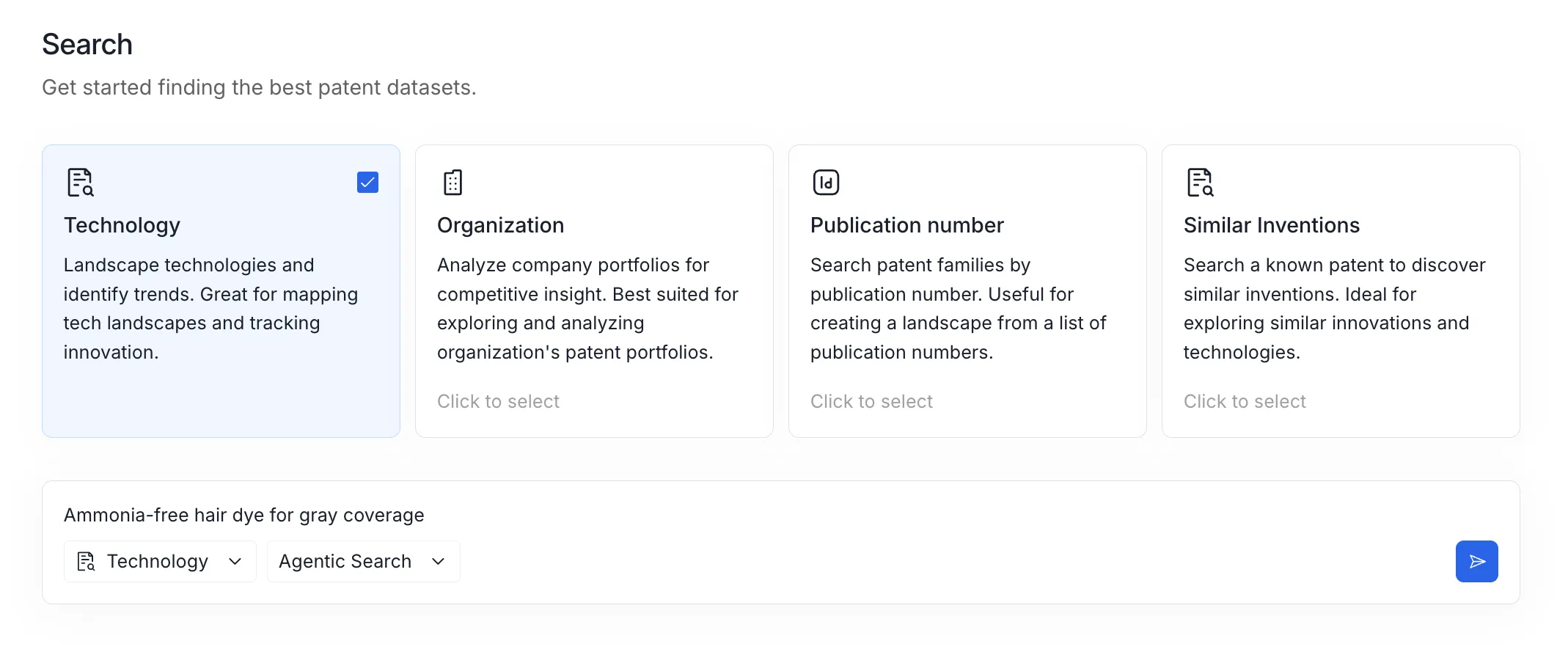
💡 Build your search query using the formula: [Technology] + [Application] + [Context] Example: Ammonia-free hair dye for gray coverage
GetFocus uses vector-based (semantic) search, which means you don’t need to write long Boolean strings to get relevant results. (New to vector search? Read What is Vector Search?What is vector search?)
One key difference from Boolean search: with Boolean, broader terms usually return more results. With natural-language (semantic) search, adding specific context helps the system understand your intent, so more detail often leads to more relevant results. Adding relevant context is crucial for making AI search perform well. The more clearly you describe what you’re looking for, the better GetFocus can retrieve the right documents. A full sentence works better than a list of keywords.
Good example:
“Ammonia-free hair dye using monoethanolamine + 4-amino-2-hydroxytoluene for 100% gray coverage”. Why? Well specified, with additional relevant context
What not to do:
“Hair dye” or “Ammonia-free”. Why? Too broad and vague on its own. It doesn’t say what product, which approach, or what performance goal you care about. You’ll pull in a huge range of unrelated patents.
Now that you’re on the results page, here are a few basics to know:
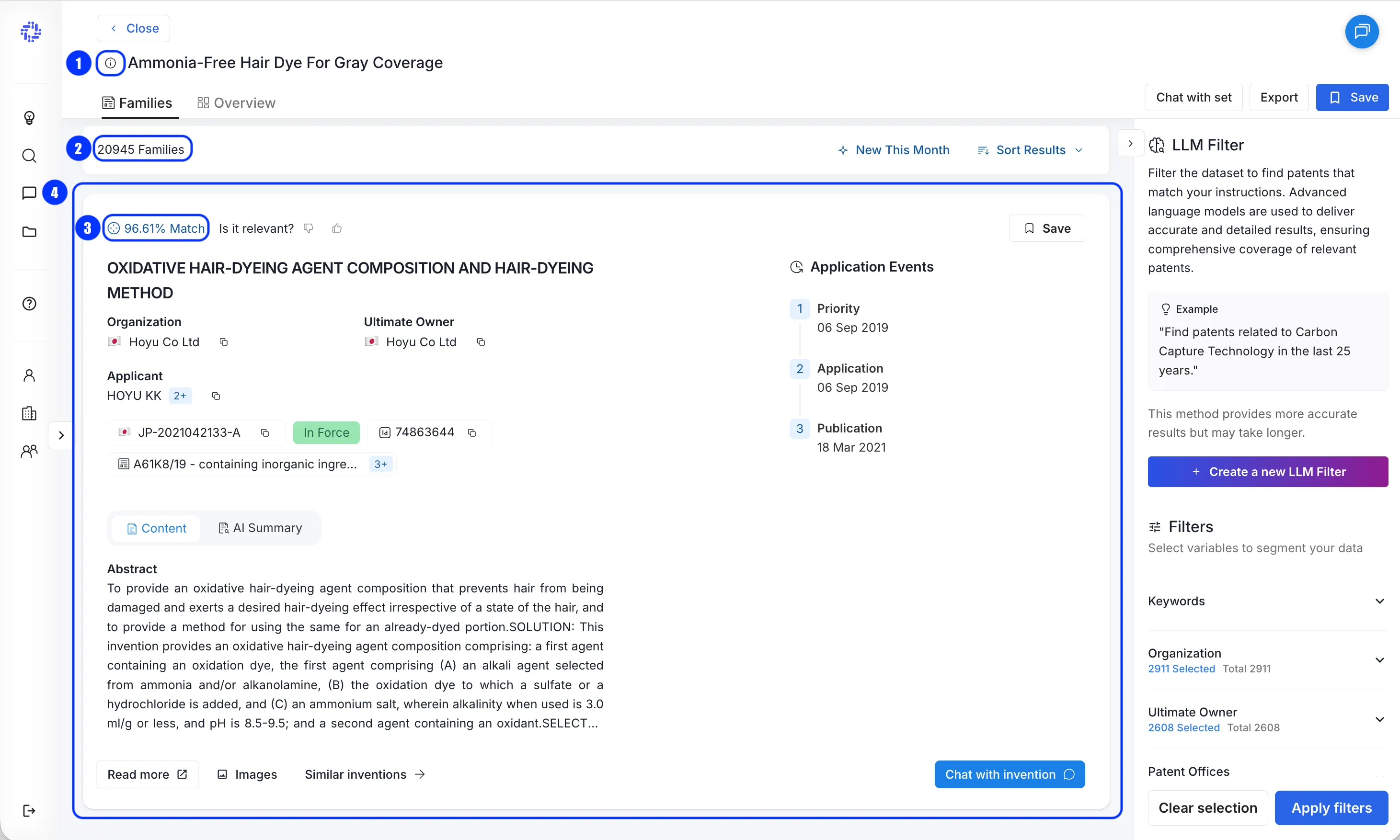
- Search details: Click the info icon (1) to view your search type and query.
- Patent family count: The side panel shows how many patent families are in your dataset (2).
- Sorted by relevance: Patents are ordered from most to least relevant, so your strongest matches appear at the top. You can also see each patent’s relevance score for your search (3).
- Broad first results (recall over precision): Initial results are intentionally broad, so you may see some noise at first.
- Filter for accuracy: To sharpen the dataset, apply filters - this is exactly what we’ll cover in the next step.
Want to understand how each patent record is shown in GetFocus? See article Patent card.
Filtering to find the right patents quickly
After you run a search, you’ll get a patent dataset, but it will often include some noise. By “noise,” we mean patents that are somewhat related (they use similar terms or address a neighboring problem) but aren’t truly in scope for what you’re trying to analyze.
That’s where filters come in. Your toolkit includes many different filters, and you can read more about each one in the article How to filter search results?How to filter search results?.
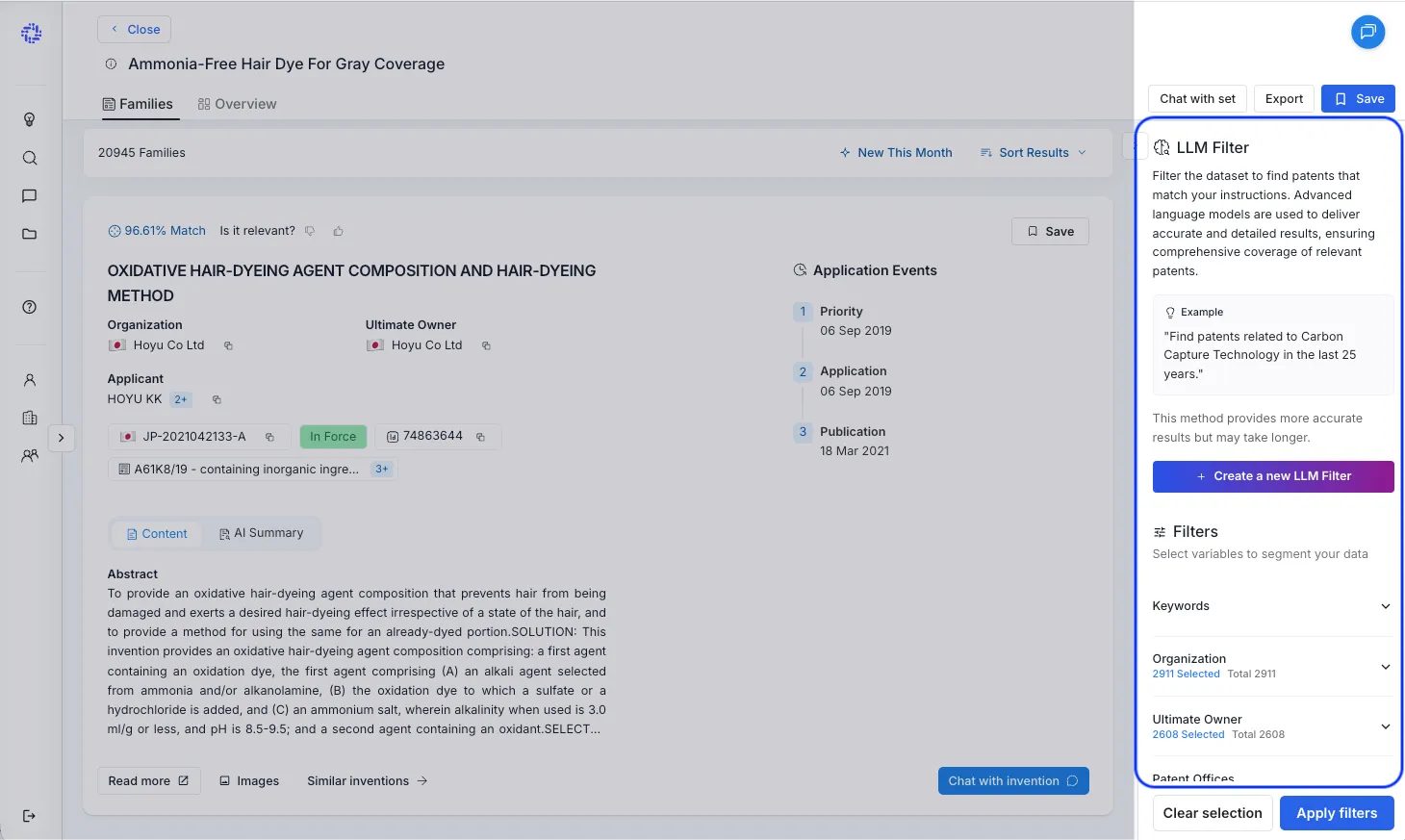
For this Quickstart guide, we’ll keep things simple and focus on the LLM filter. It lets you describe what you want in natural language, so you can quickly remove noise and keep only the patents that match your topic.
- Click Create a new LLM filter.
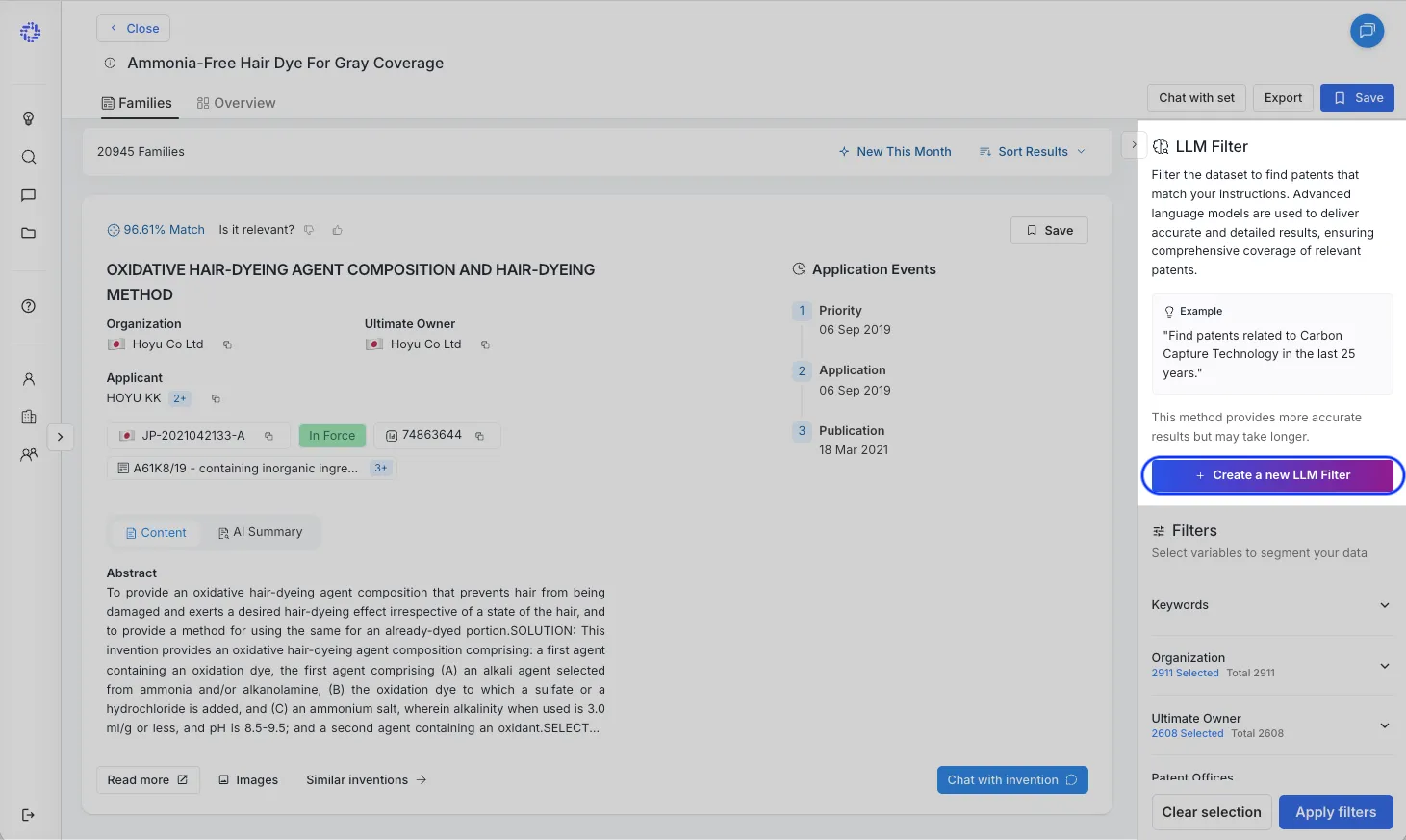
- In the instruction box, describe what you want to keep in plain language. Example instruction: “Only include patents about 100% ammonia-free hair dye compositions for grey coverage that also have conditioning or nourishment benefits.”
Need help writing a good instruction? See How to write LLM filters that work.
- Click Create LLM filter (or press Enter) to start. GetFocus will review each patent family and decide whether it matches your instruction. Anything that doesn’t match will be filtered out.
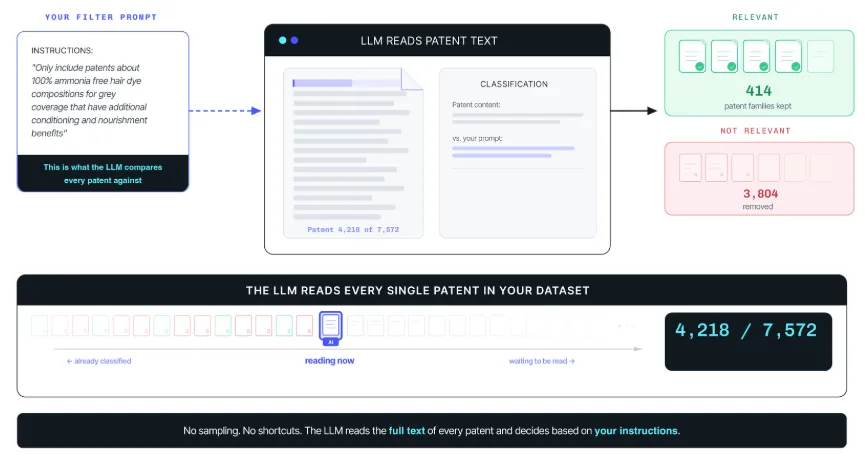
💡Runs in the background: LLM filters process about 12 patent families per second and can keep running while you continue working in GetFocus. When you’re ready, come back and click Apply filter.
- When processing is finished, click Apply filter to see the results.
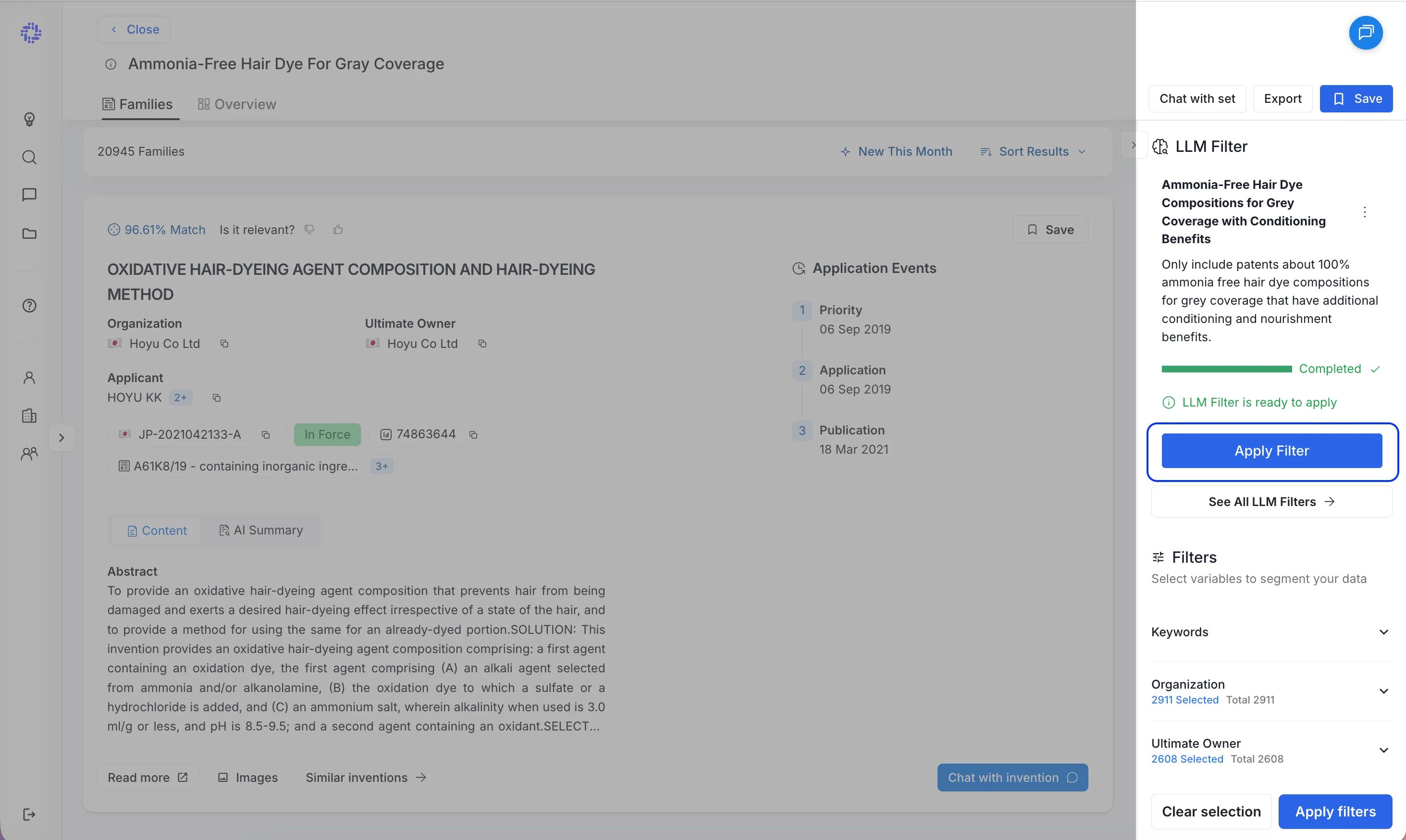
‼️One LLM filter can process up to 10,000 patent families. If your dataset is larger, GetFocus will process the 10,000 highest-relevance families first.
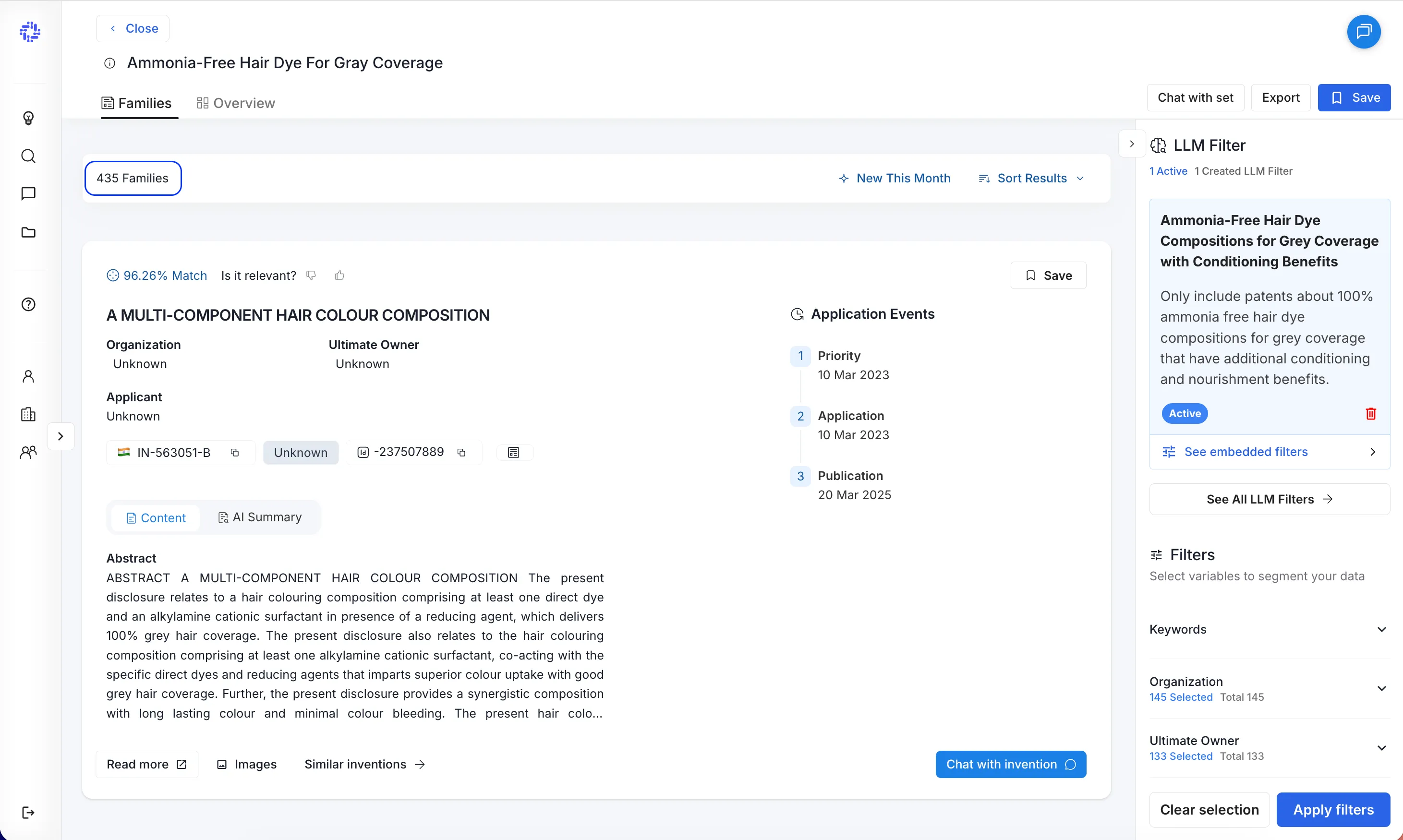
After you apply the LLM filter, the dataset shrinks because patents that don’t match your criteria are filtered out.
Extracting the insights
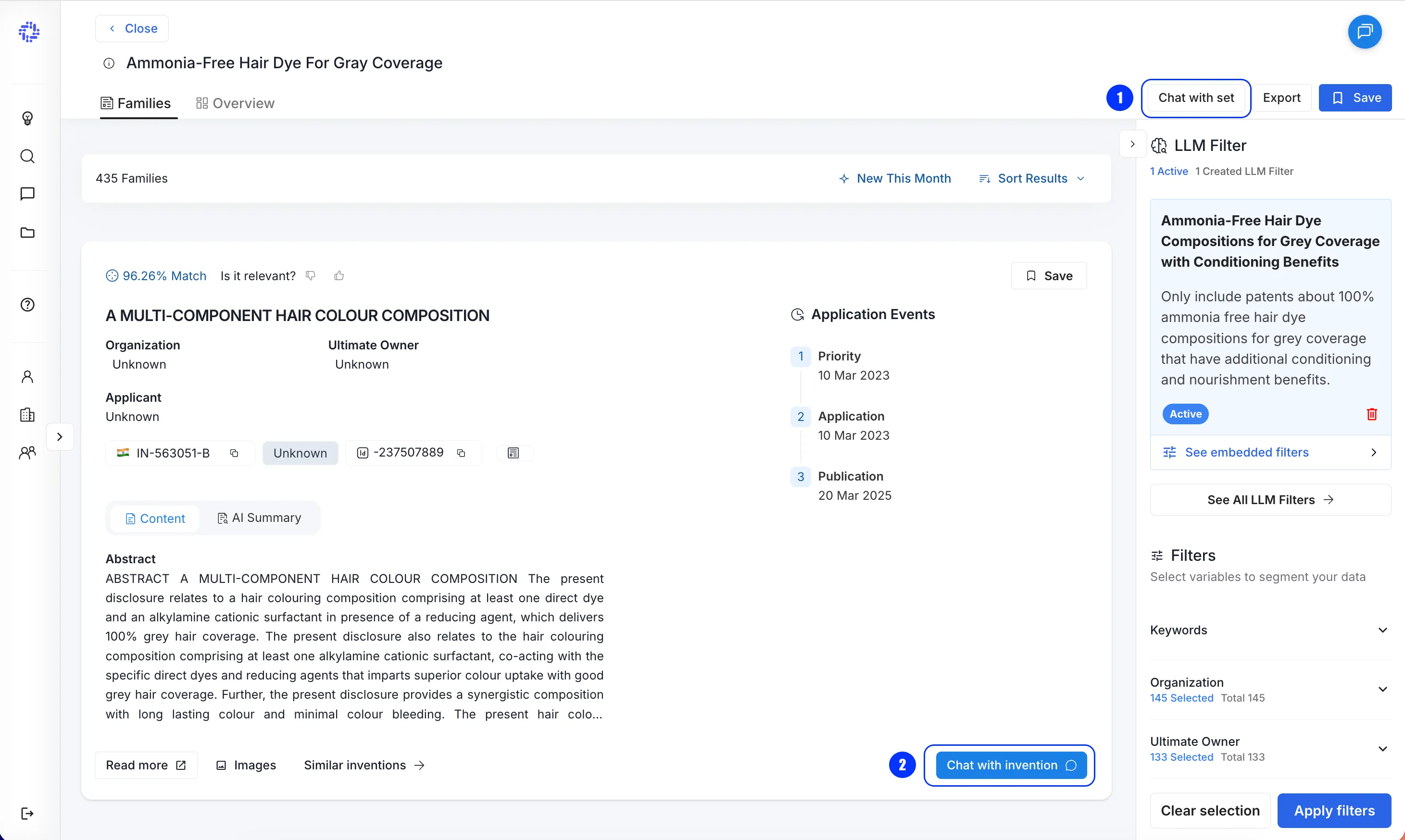
Now, getting to the insights. When you’re ready to turn your dataset into answers, GetFocus offers two ways to chat with your patents:
- Chat with Set → ask questions across a dataset (up to 1,000 families)
- Chat with Invention → deep-dive into one patent in detail
Use Chat with Set for “What’s happening across the landscape?” and Chat with Invention for "What does this patent specifically say?”
Chat with Set
Use Chat with Set to ask high-level questions across a group of patents—trends, themes, and portfolio comparisons. What it reads: titles, abstracts, and claims (for all families in the set) Best for:
- spotting trends and how they change over time
- comparing portfolios across companies
- summarizing what’s in your filtered dataset
How it works: Type your question, and your answer will be generated below.
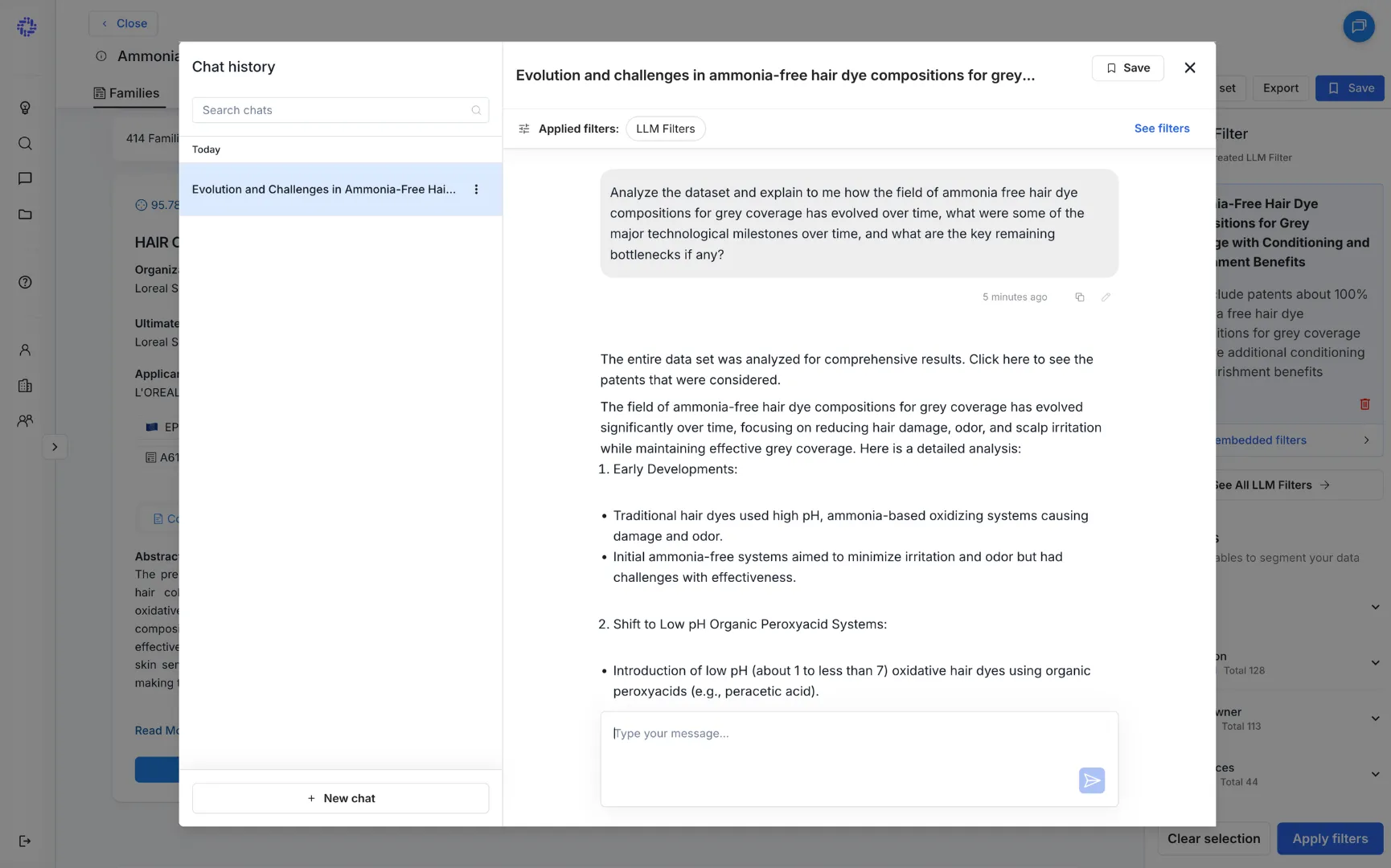
If your dataset contains more than 1,000 families, Chat with Set will use a subset of 1,000 families to generate an answer.
💡 If you want full control over which families are included, filter your dataset down to ≤ 1,000 before asking your question. You can also apply common filters directly in Chat with Set (e.g., publication year, status, patent office, ultimate owner).
Chat with Invention
Use Chat with Invention when you want detailed Q&A on a specific patent.
What it reads: title, abstract, claims, and the full description (including images, if available) Best for:
- understanding a single invention thoroughly
- extracting implementation details, embodiments, or claim scope
- answering precise technical questions
Chat with Invention includes references and cites sources at the bottom of its answer.
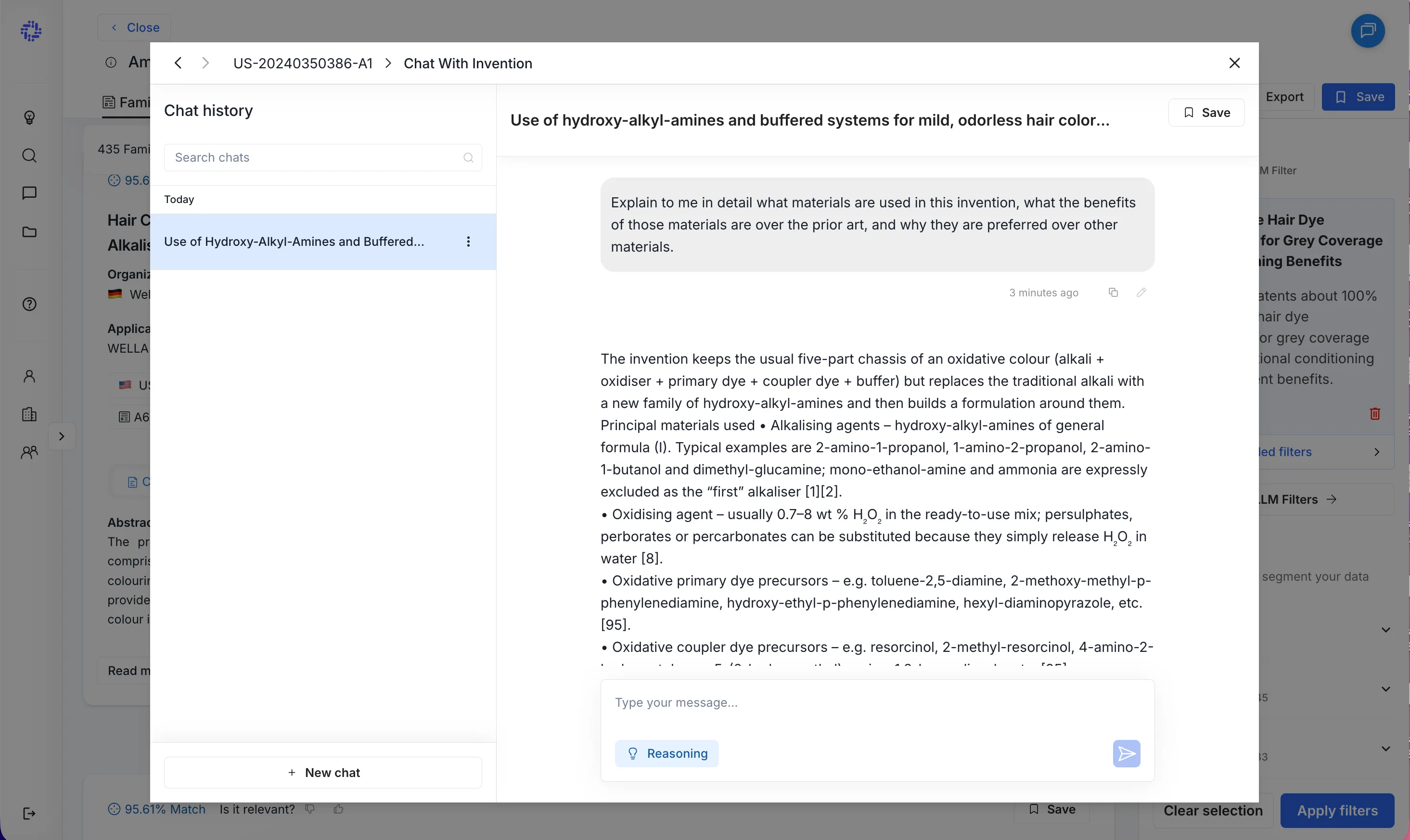
Chat with Invention supports two modes:
- Non-reasoning mode: best for quick, straightforward questions (fast responses)
- Reasoning mode: best for complex questions (takes more time, higher quality reasoning)
What's next?
You've built your dataset and have the tools to analyze it. To go advanced, explore the articles and interactive walkthroughs below:
⚖️ Patentability/Prior Art Search
Identify novelty of an idea and find prior art most closely related to the concept ↗ Link to Storylane Clickthrough
⚖️ Invalidity search
Identify patents that destroy the novelty of a patent you want to invalidate ↗ Link to Storylane Clickthrough