
Chat with Invention
Chat with Invention lets you have a detailed conversation with a single patent. Instead of reading through dense legal text yourself, you ask questions in plain language and the AI answers based on the patent's content.
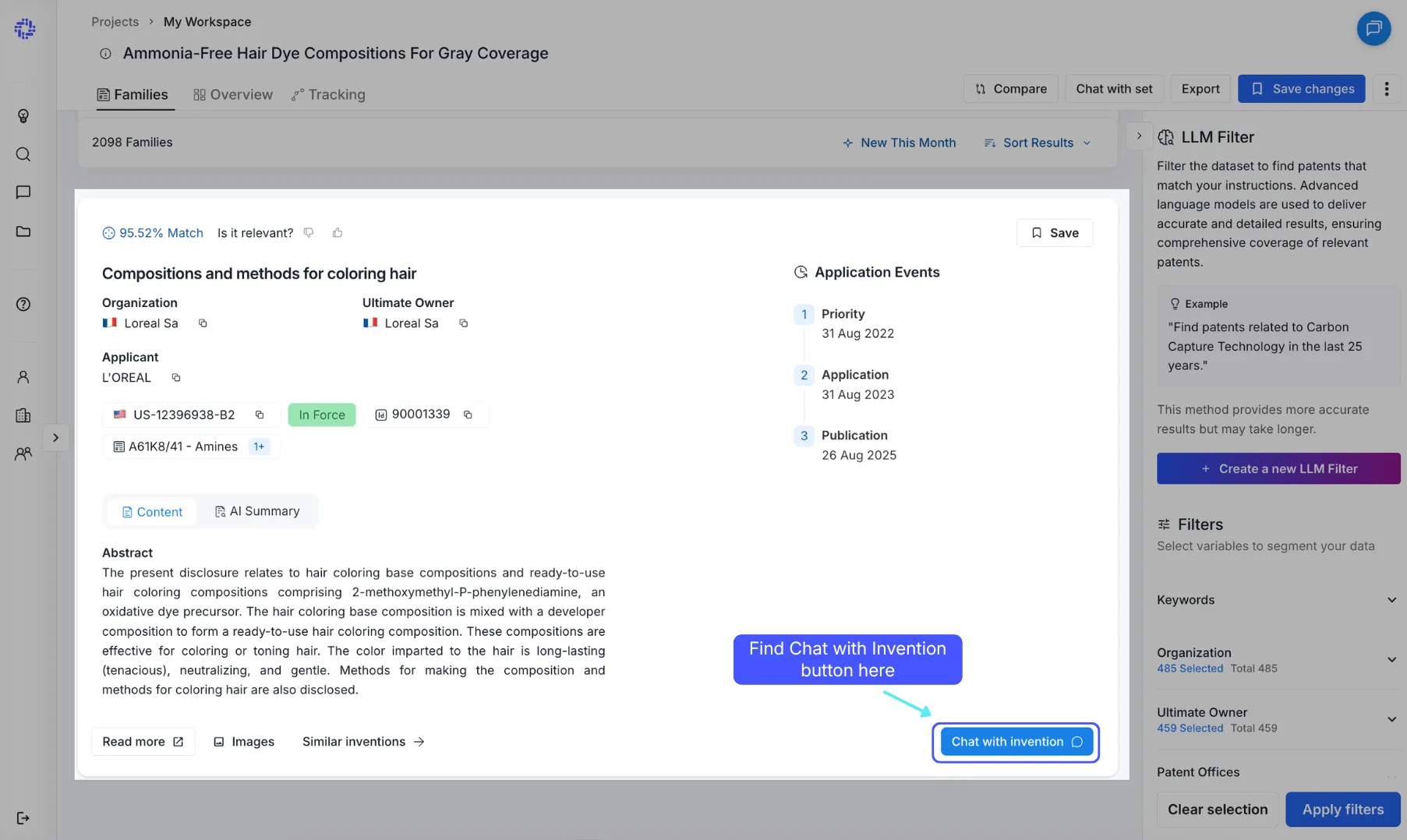
Use Chat with Invention when you want to go deep on a specific patent. It's best for:
- Understanding what an invention actually does and what problem it solves
- Extracting implementation details, materials, or embodiments
- Exploring the scope of claims
- Answering precise technical questions about a specific invention
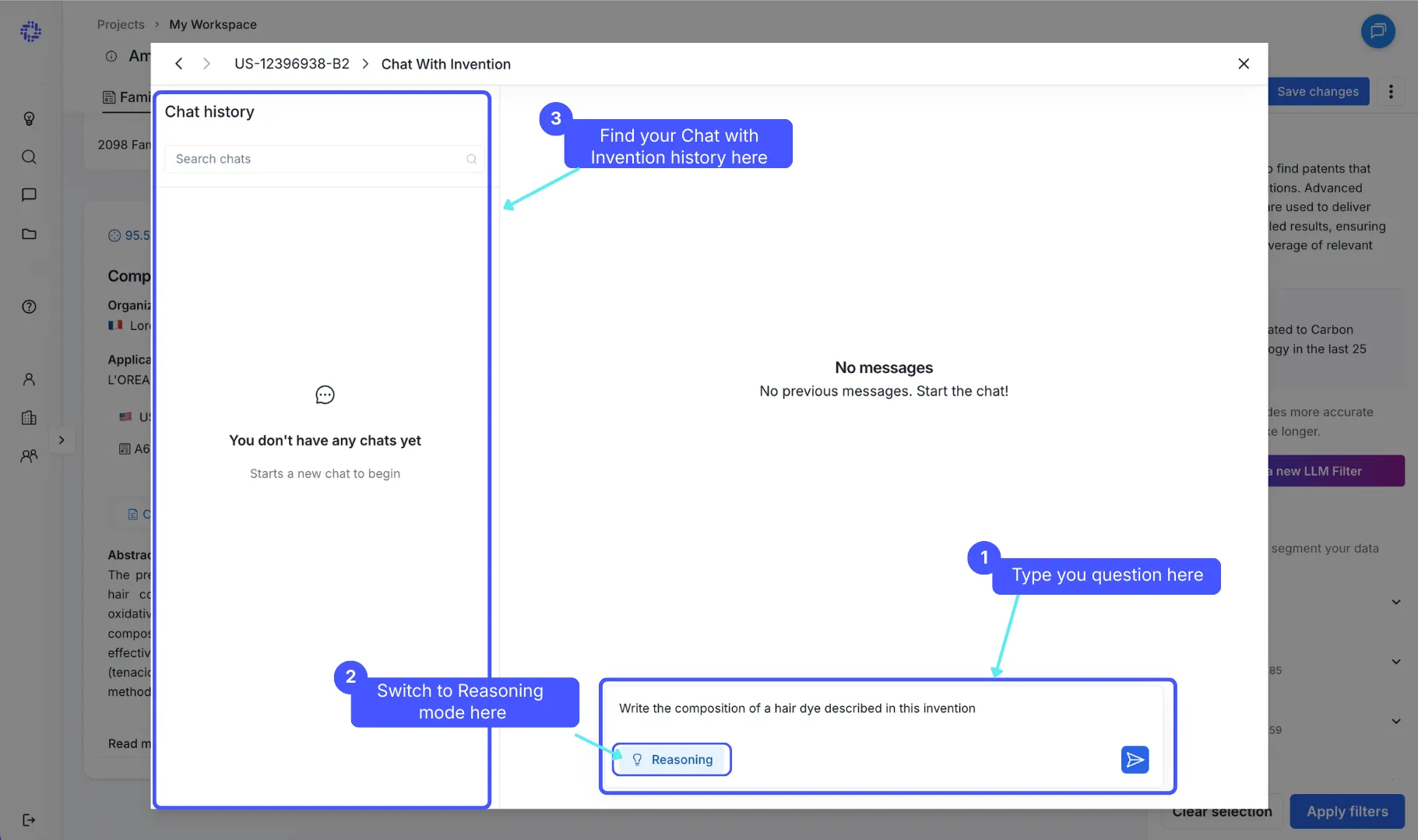
Chat with Invention focuses on one patent in depth. If you want to analyze trends or ask questions across a whole dataset, use Chat with SetChat with Set instead.
How it works
You ask a question, and the AI answers based on the full content of the selected patent. It has access to:
- Title
- Abstract
- Claims
- Full description
- Images (where available)
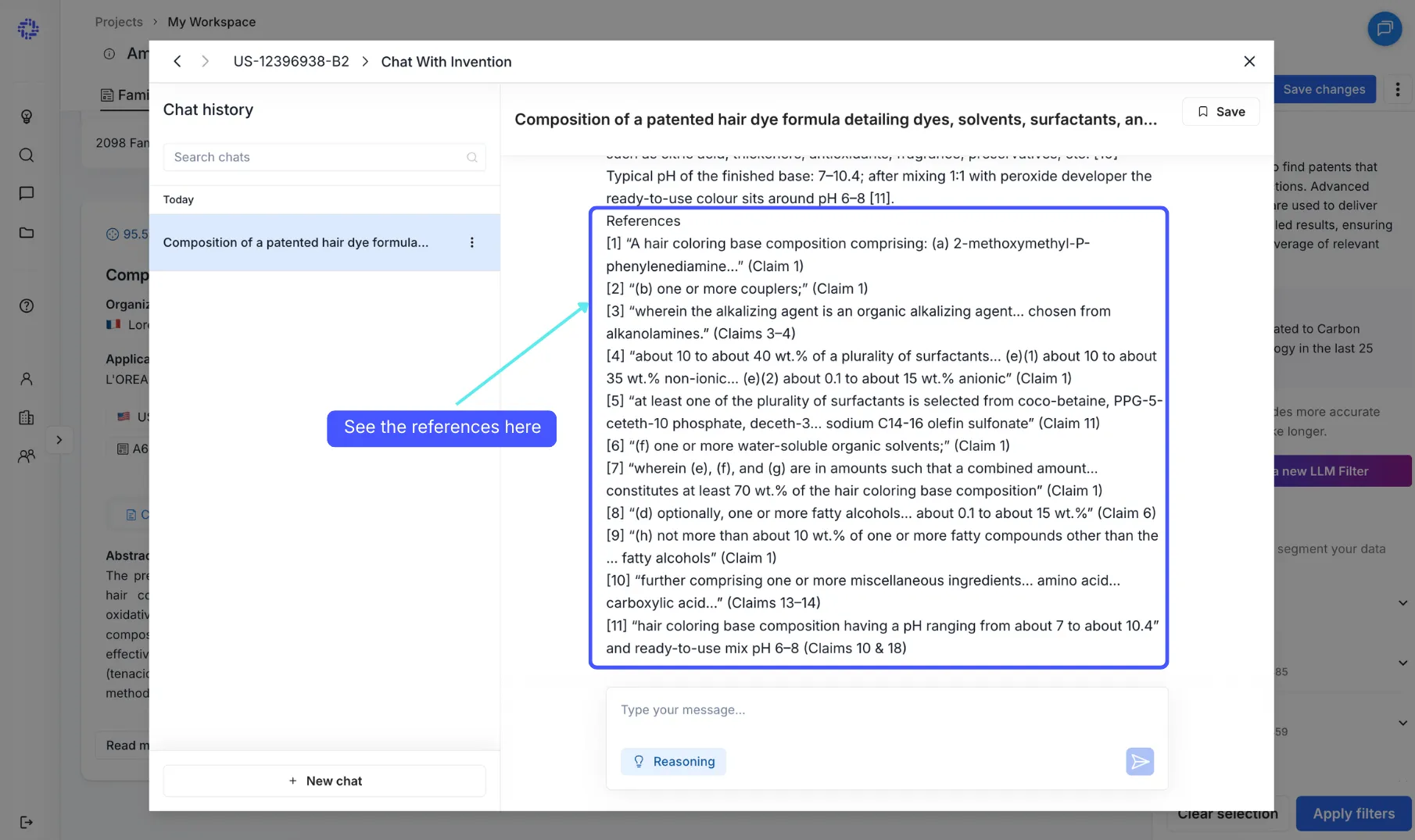
💡 Sources included: The AI cites its sources and includes references at the bottom of each answer, so you can always trace back where an answer came from.
Limitations to keep in mind
Single patent only: The AI answers based solely on the selected patent. It does not cross-reference other patents in your dataset.
Answers may vary: If you ask the same question more than once, the response may differ slightly.
Complex questions: For nuanced or multi-part questions, switch to reasoning mode for more reliable results.
When to use reasoning mode
Chat with Invention offers two modes, which you can switch between using the toggle in the chat interface:
- Non-reasoning mode - best for quick, straightforward questions. Responses are fast and work well for simple extraction tasks like summarizing claims or listing materials.
- Reasoning mode - best for complex questions and images analysis. Takes more time, but produces higher quality analysis and reasoning.
Saving a Chat
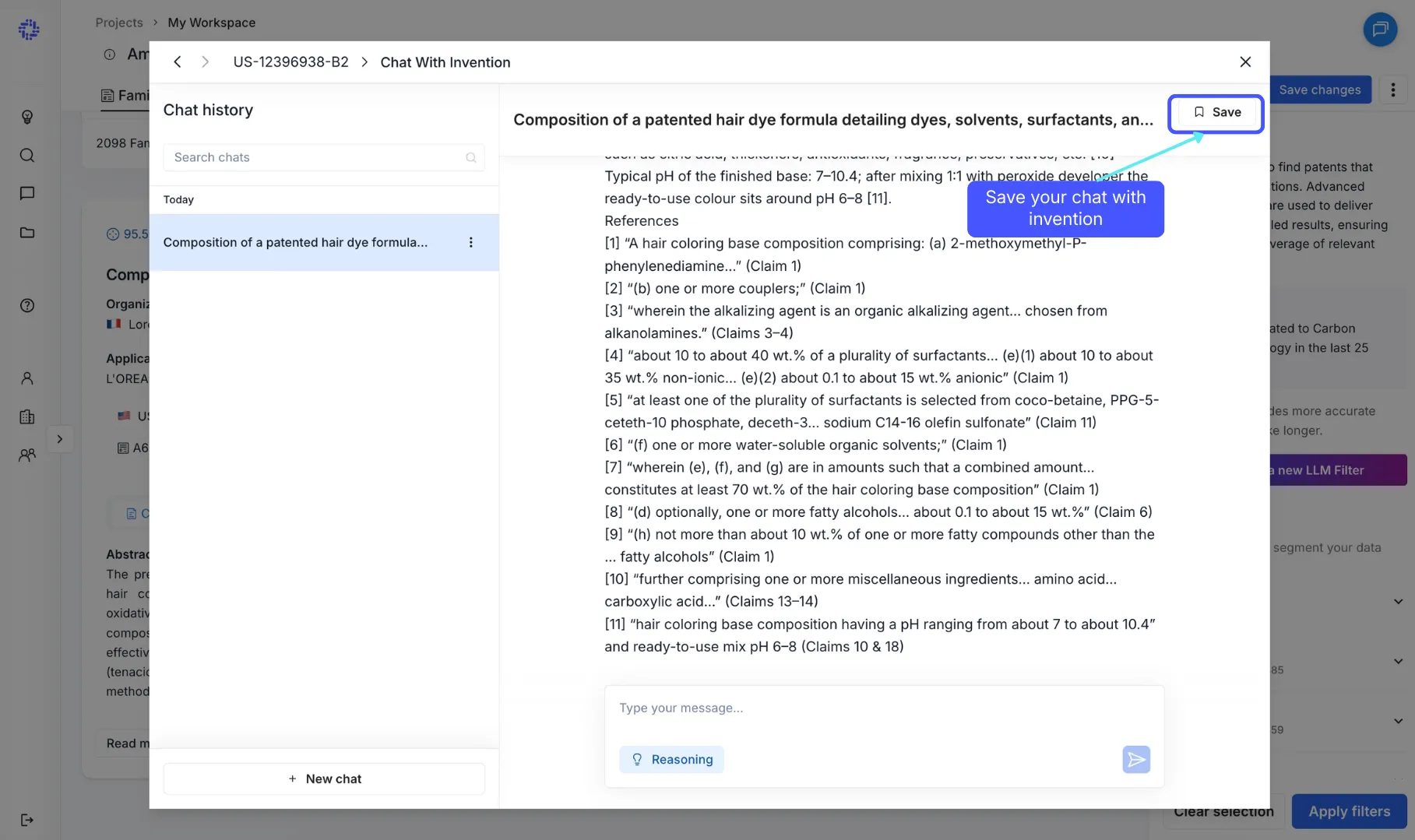
You can save any Chat with Invention conversation for future reference.
To save a chat:
- Click the Save button in the chat panel
- Click the pen icon to rename the chat before saving
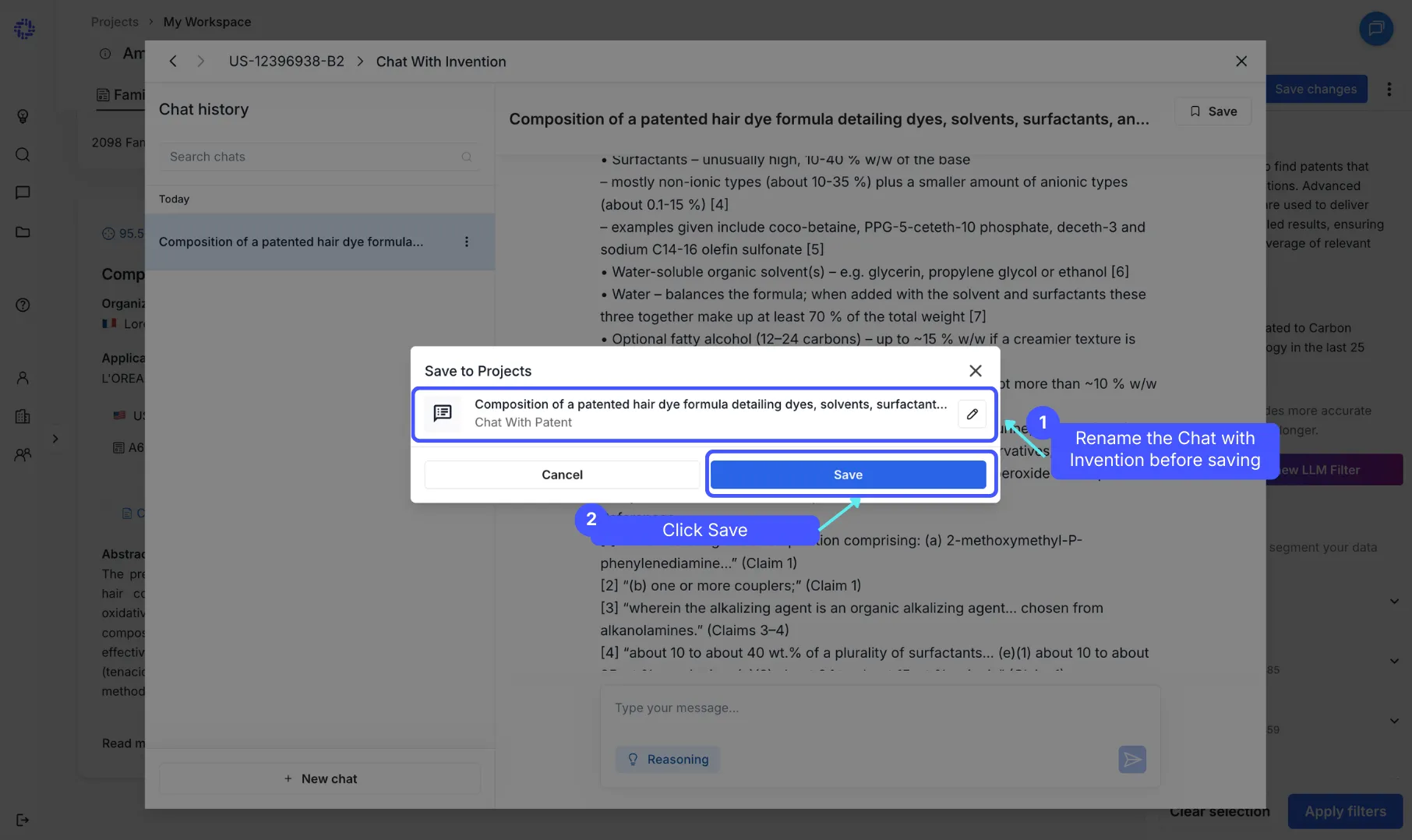
- A success message will confirm it's been saved - click "Open in folder" to jump straight to it
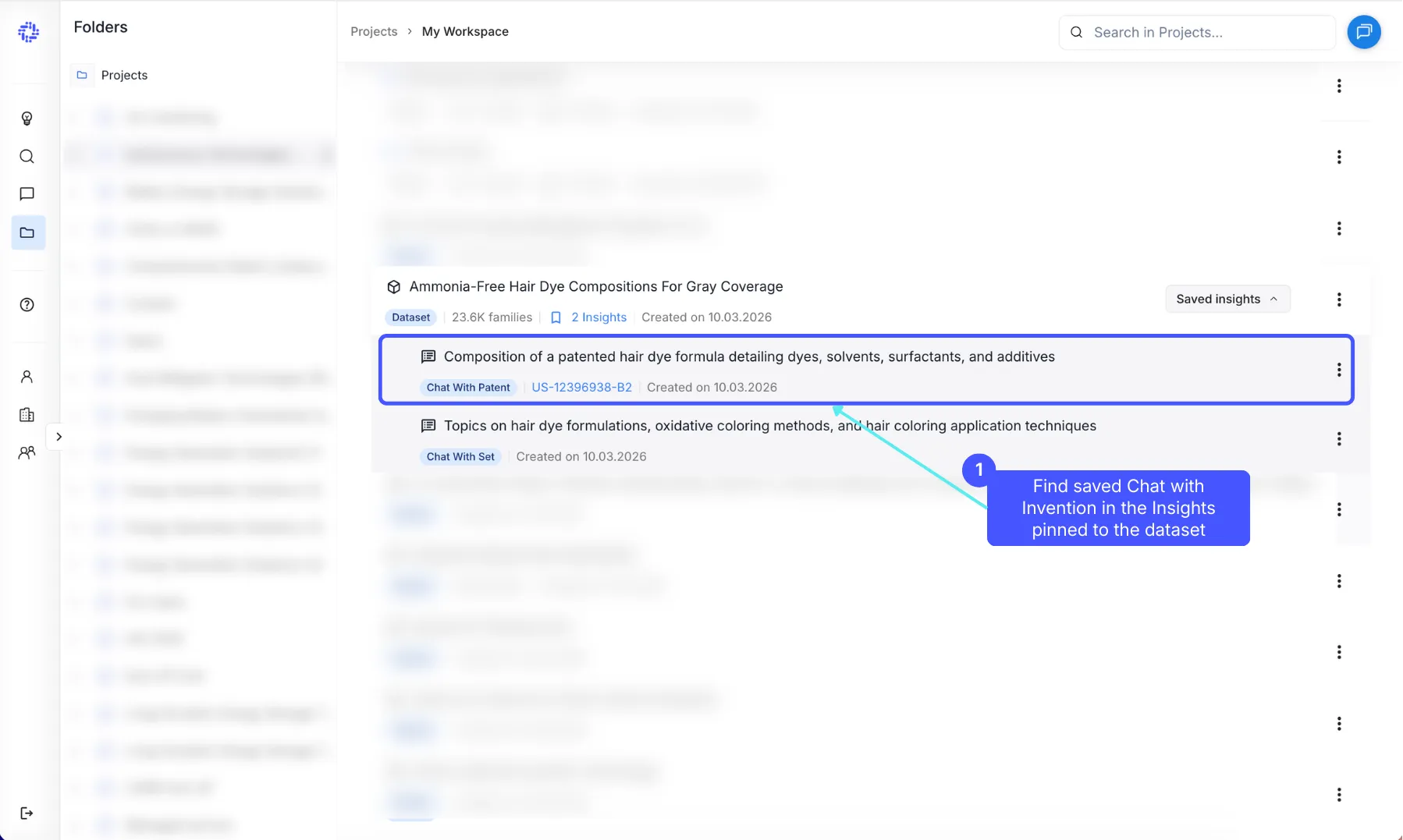
To find saved chats:
- Click "Show Insights" in your workspace
- All saved chats, comparisons, and insights are stored here linked to the datasets
For prompt examples, and prompting tricks, read Prompting like a ProPrompting like a Pro.