
From technology question to strategic recommendation
Meet Technology Forecasting Agent
Go to the Agentic tab in GetFocus.
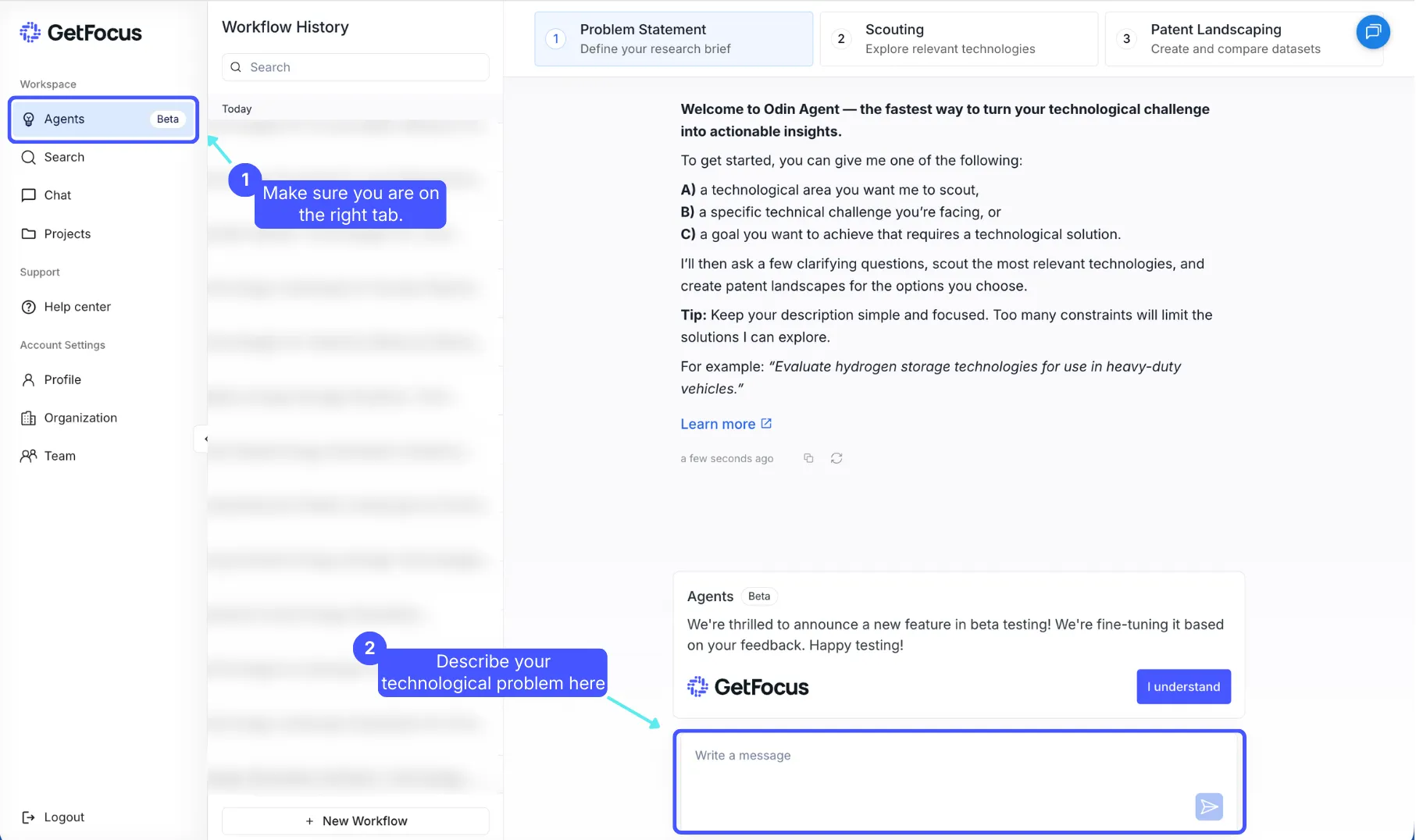
First you start with the problem Statement definition. In the text field at the bottom, describe what you’re trying to do. Include:
- the technology domain
- the technical challenge
- and the goal you want to achieve
Then click the arrow icon (or press Enter) to continue.
The agent will ask a few clarifying questions to confirm your intent. Reply in whichever format is easiest: numbered answers, or free text - the agent can interpret both. If you start with a broad instruction, you’ll get a broader scouting phase in the next step.
💡 The more relevant context you provide up front, the fewer follow-up questions the agent needs to ask.
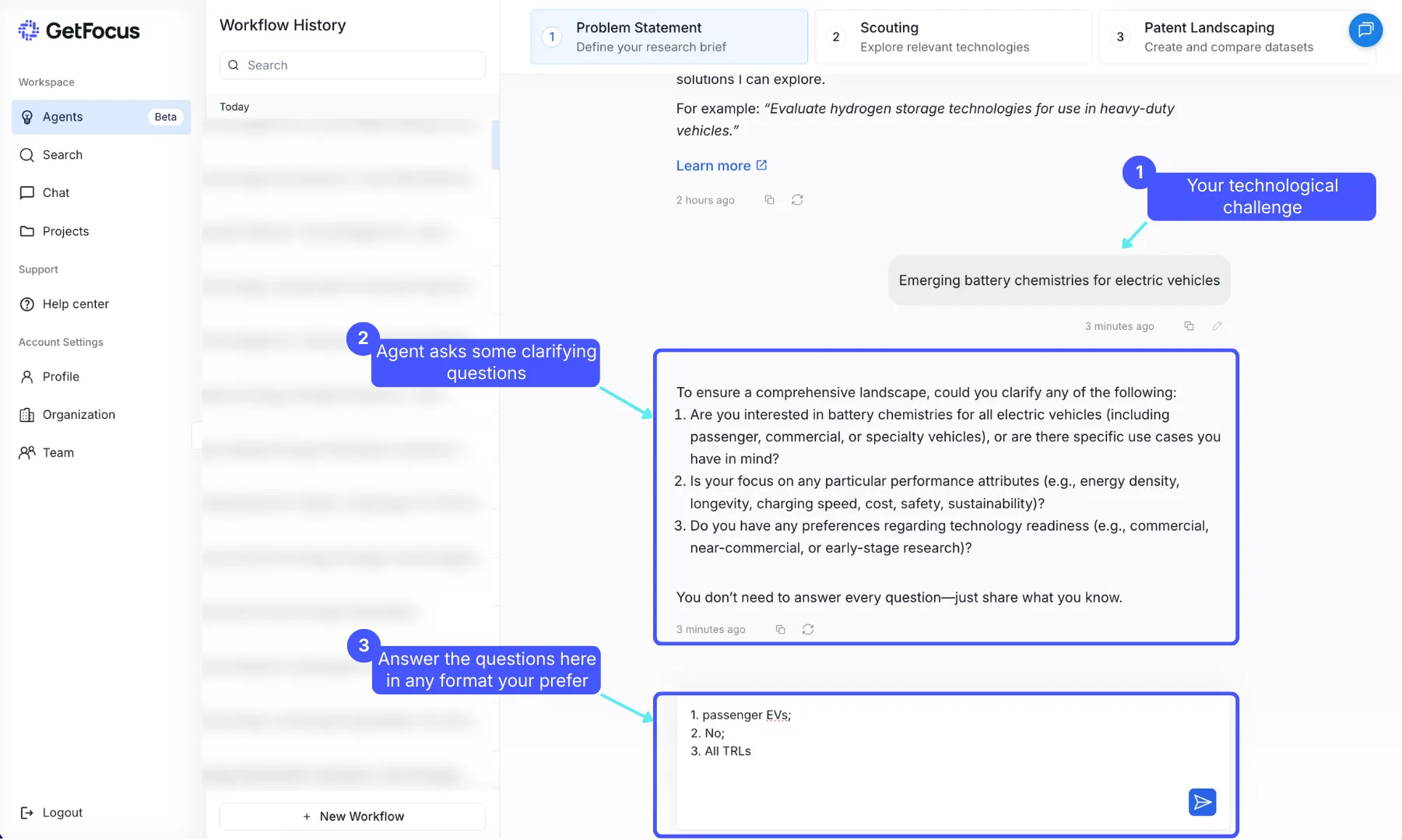
The agent may ask follow-up questions again if anything is still unclear. Even if it doesn’t, you can always add extra details (constraints, preferences, time horizon, success criteria) to guide the analysis.
Next, the agent creates a research brief that outlines:
- the core problem statement
- the application context
- key boundary conditions (constraints)
- and what the agent is allowed to explore
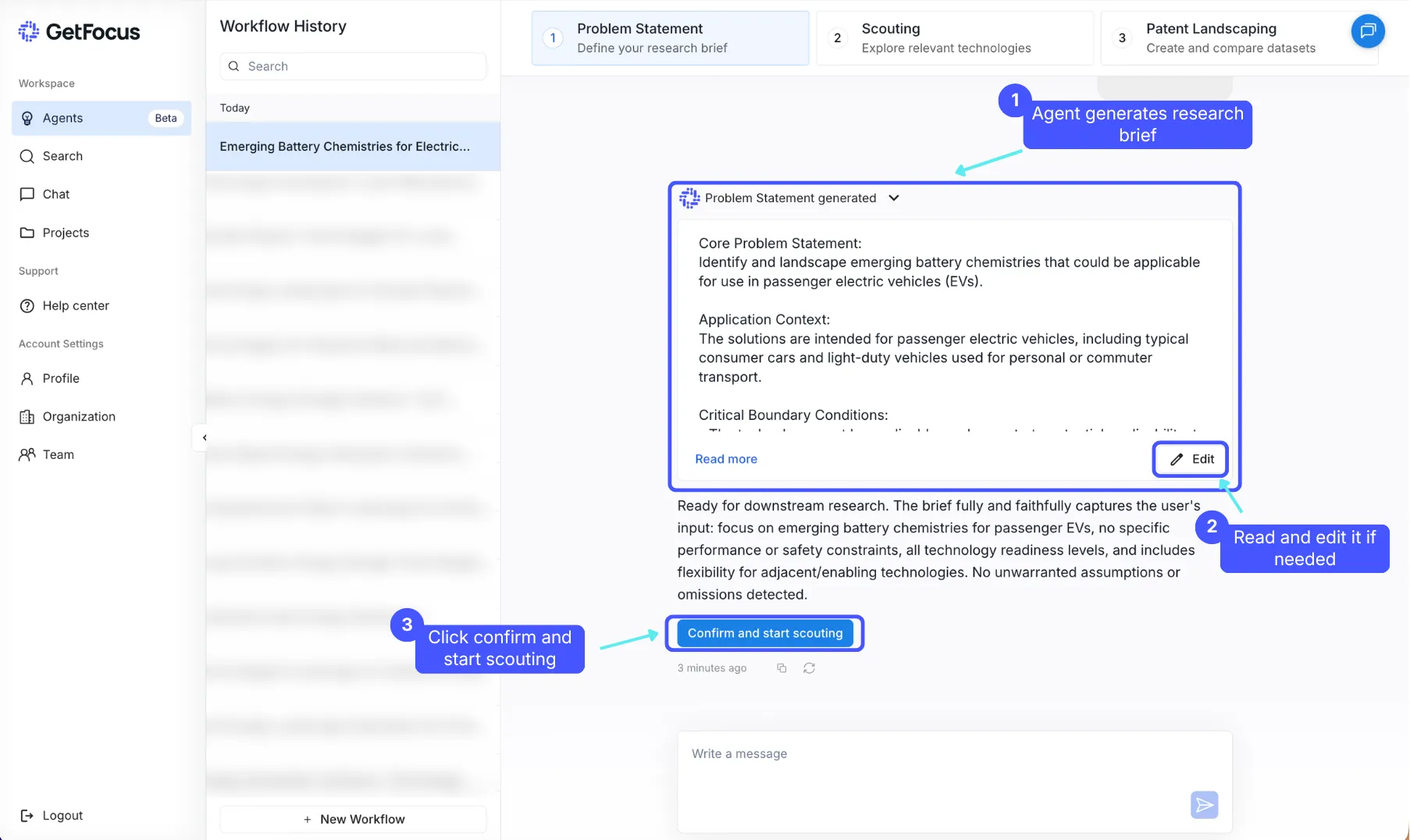
When you’re happy with the problem statement, click Confirm & start scouting. This kicks off the technology scouting process.
Everything that happens next depends on the quality of this problem statement - so take a moment to read it carefully and edit it if needed. A clearer problem statement leads to more relevant scouting results.
Now that the problem statement is set, it’s time to shift into the scouting step, where the agent explores the technology landscape.
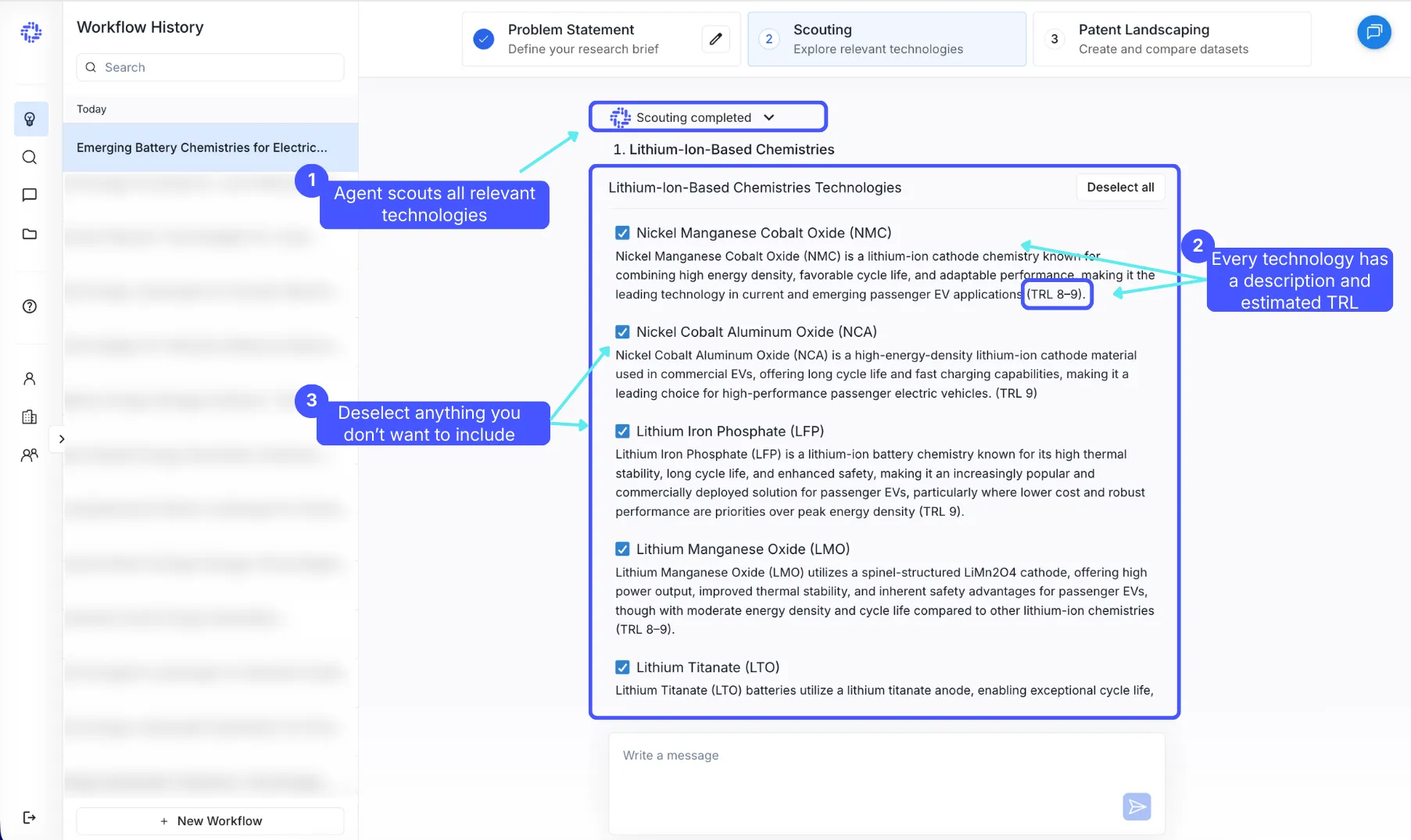
After a short thinking period, the agent generates an overview of relevant options, grouped by their underlying technological principle.
For each technology, you’ll see:
- a short description
- an estimated TRL (Technology Readiness Level)
By default, all technologies are selected. Review the list and deselect anything you don’t want to include. When you’re ready, scroll to the bottom and confirm your selection.
💡 If part of the list looks off (missing areas, too narrow/broad, wrong focus), continue the conversation with the agent and ask it to refine the list based on your input - for example:
- “Focus on solutions that work under X constraint.”
- “Exclude approaches based on Y principle.”
- “Add options optimized for Z use case.”
For each technology you selected, the agent generates:
- a natural-language search query, and
- an LLM filter
You can edit them anytime to broaden or narrow the search.
💡 If results are too narrow, simplify the query. If results are too broad, add one or two specifics (use case, constraints, key performance requirement).
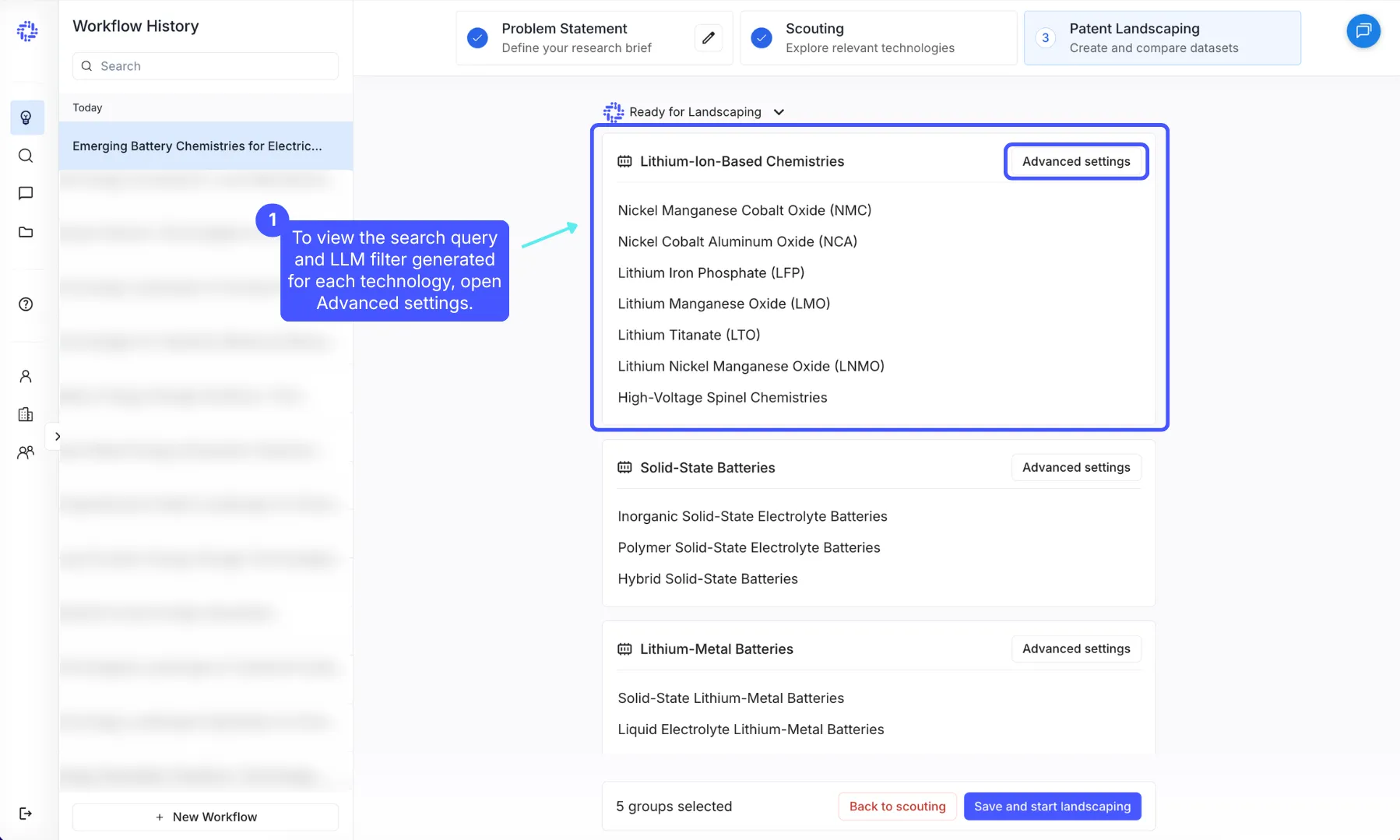
Why the search query is broad (by design): AI search has come a long way, but it’s still not perfect. This natural-language query is designed to get us into the right neighborhood of patents, so it’s optimized for recall. That means you should expect some noise in the initial results.
To remove the noise and keep only truly relevant patents in the final landscape, GetFocus applies an LLM filter to every retrieved patent family.
After LLM filtering, you’ll have a patent landscape that widely covers the domain, while keeping the dataset focused on the patents that match your criteria.
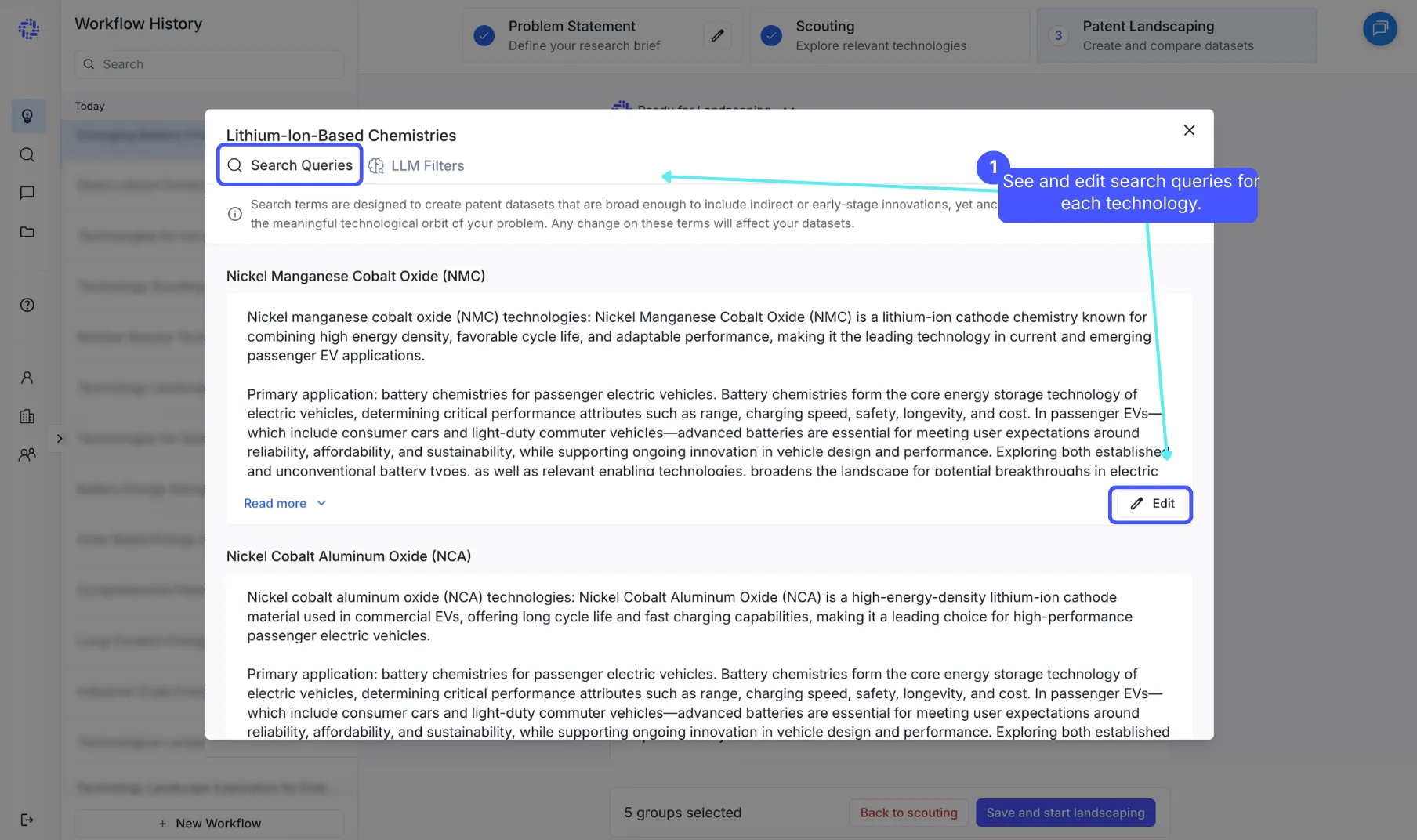
The LLM filter reviews the patents retrieved by your search query and evaluates them one by one against your instructions. Its job is to decide whether each patent is in scope (relevant) or out of scope (not relevant).
Each LLM filter includes:
- Task — what the filter is trying to identify
- Inclusion criteria — what must be true to keep a patent
- Exclusion criteria — what rules a patent out
- Edge-case guidance — how to handle borderline examples
You can also edit the LLM filter if you want to tighten or broaden the definition.
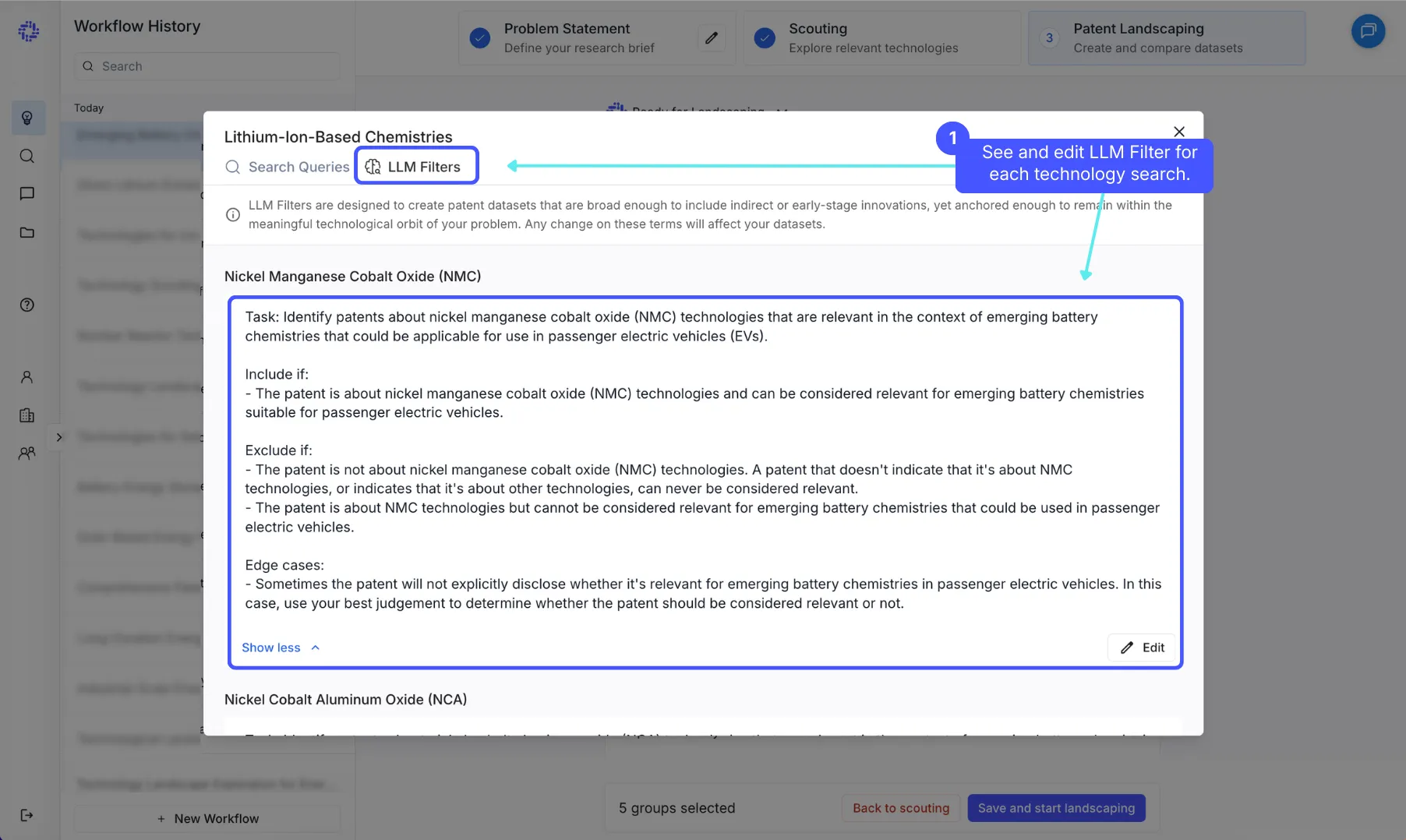
If you feel that any technologies are missing from the list, you can add them manually by clicking Add Technology. Then write a name of the technology or its description, and GetFocus will automatically generate the corresponding search query and LLM filter.
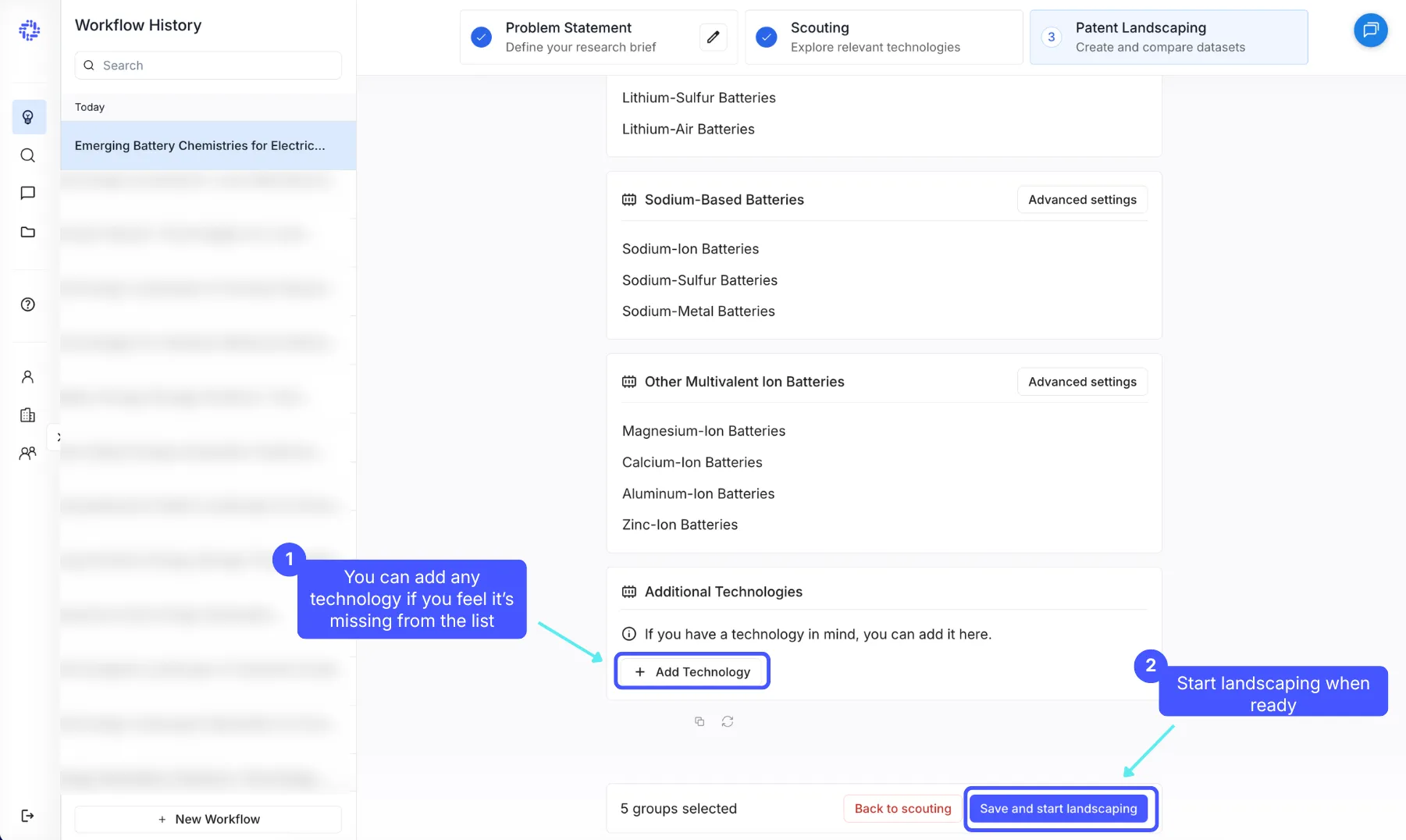
When you’re ready, click Save and Start Landscaping to begin creating datasets. You can name your project before it starts running. Once landscaping begins, GetFocus creates a new project folder for your work.
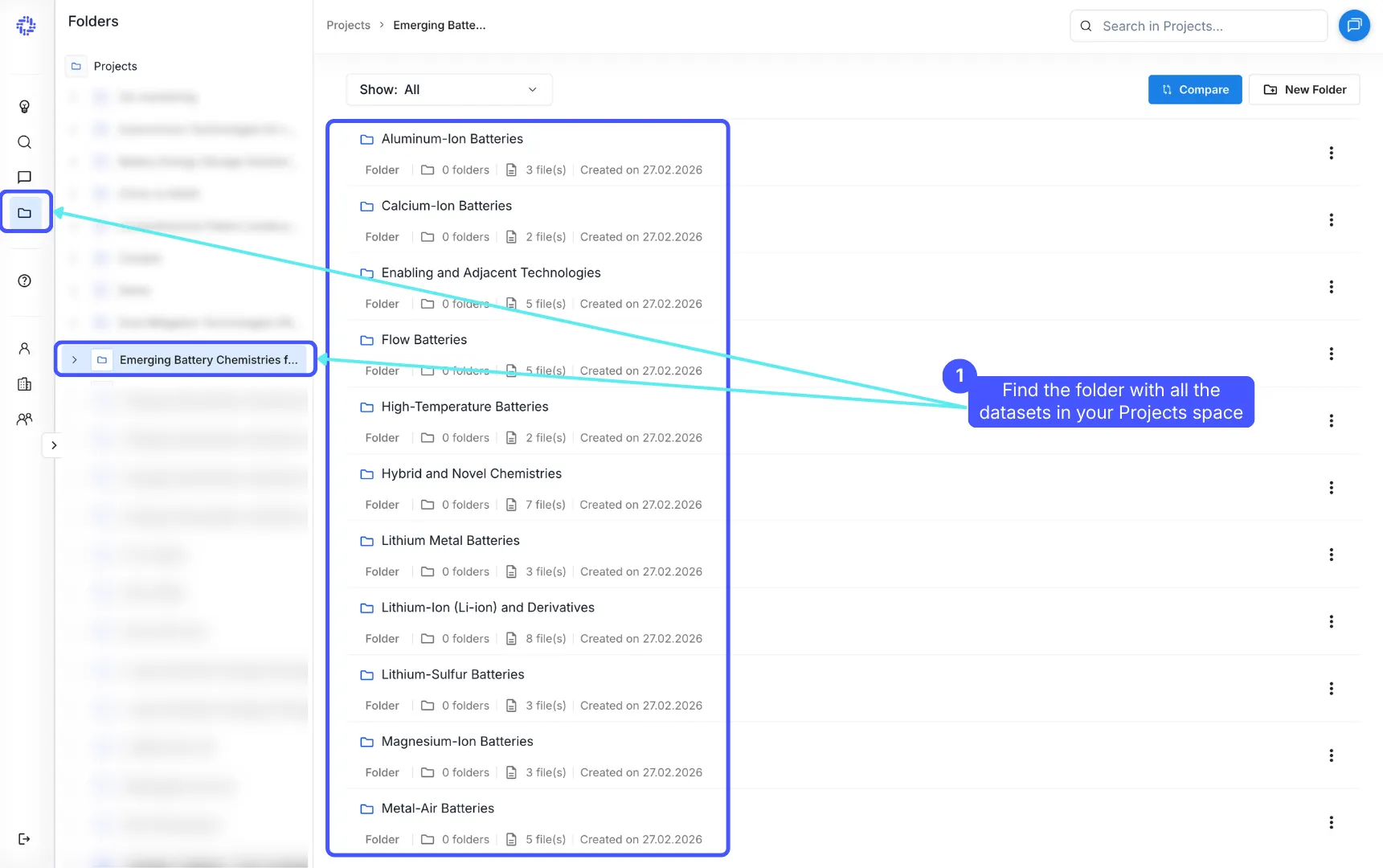
GetFocus is now landscaping all selected technologies. The most time-consuming part is LLM filtering, where the patents retrieved by the initial search are reviewed and filtered for relevance. This requires processing the content of each patent with an LLM, which can take some time.
Landscaping typically takes several hours. You don’t need to stay on this page - feel free to move on or work on other projects. We’ll email you when landscaping is complete and your datasets are ready for analysis.
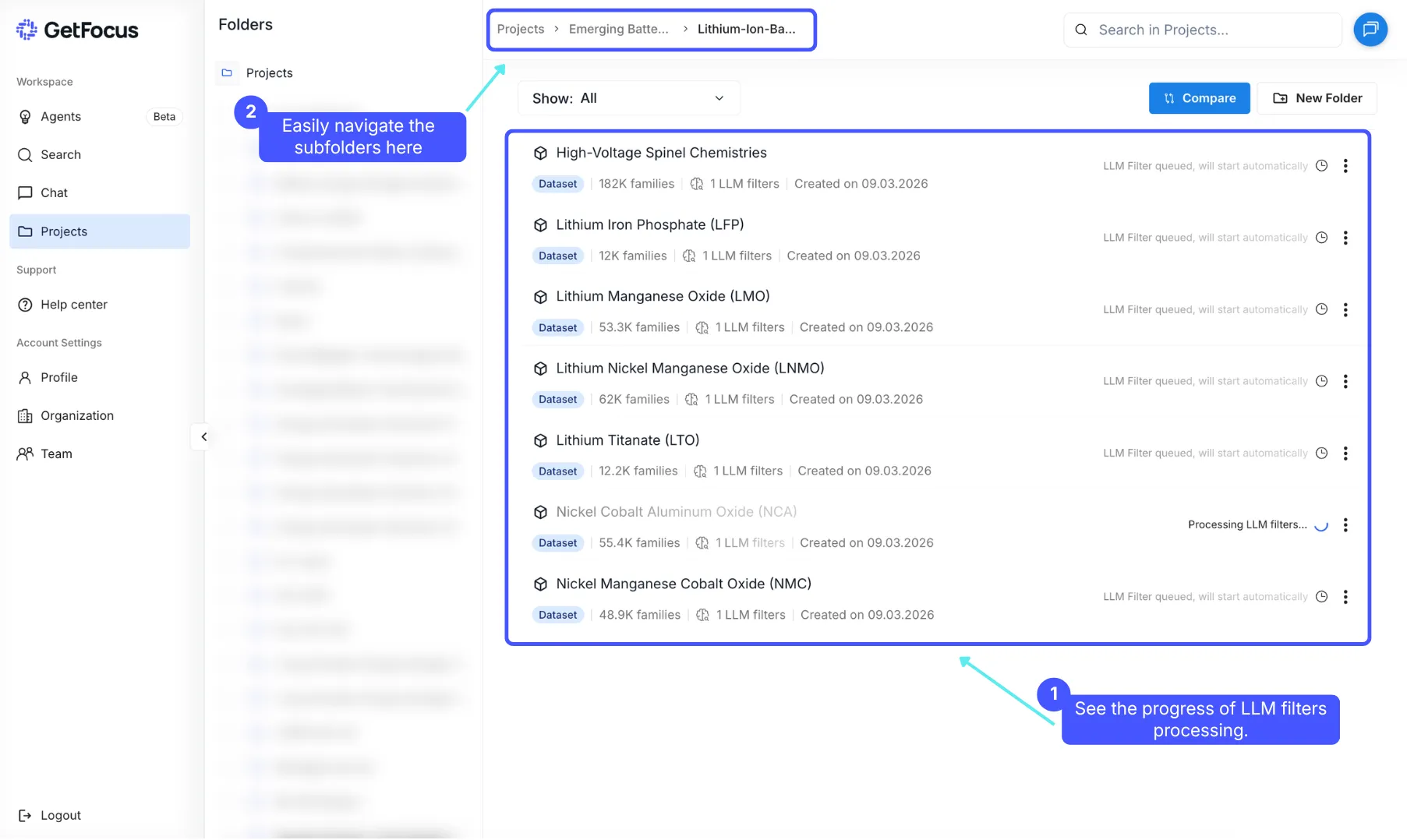
When all datasets are ready, GetFocus automatically creates a comparison chart for all the technologies you landscaped. You can find the chart in each technology’s folder, next to the datasets.
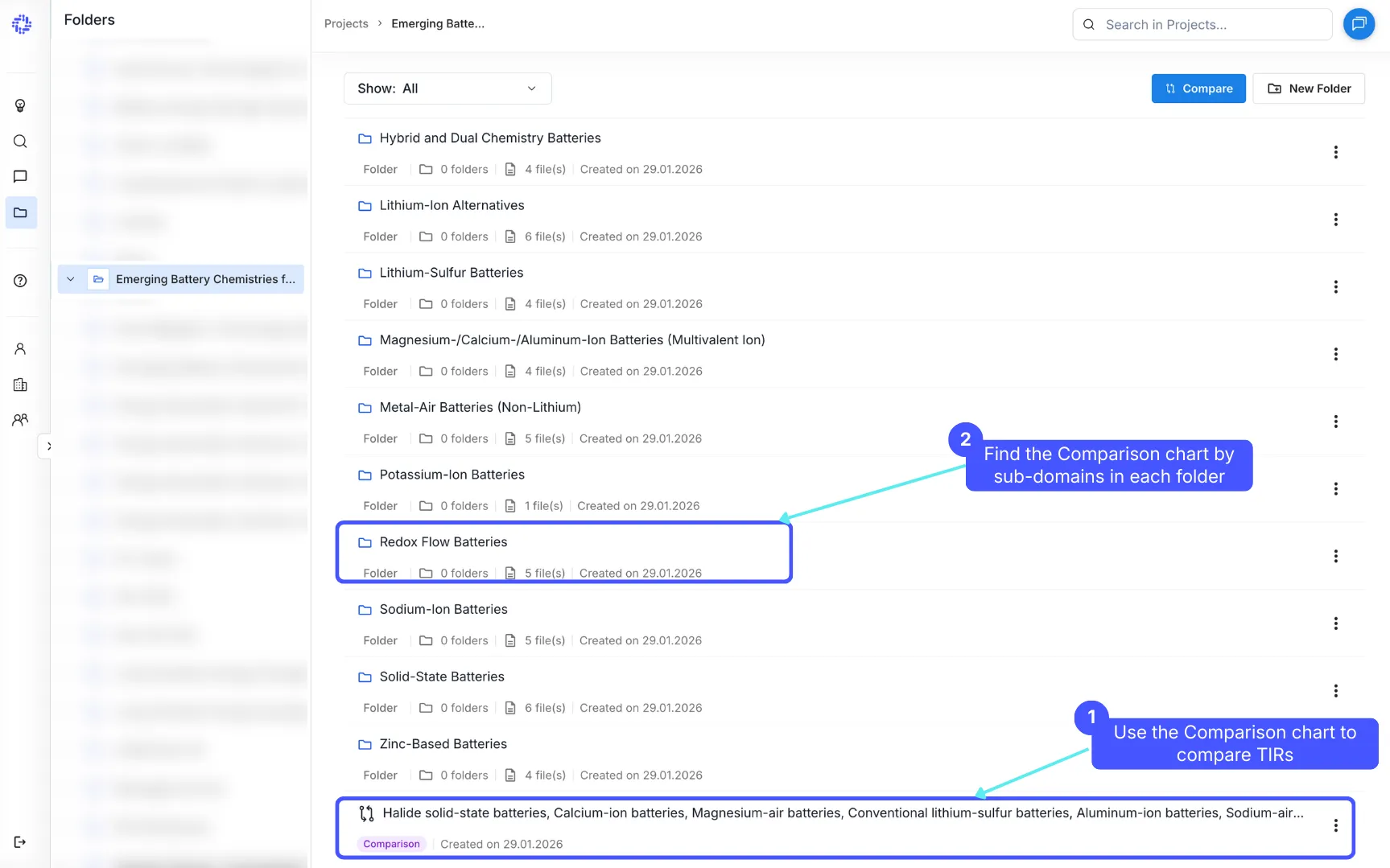
If your project includes technologies from multiple sub-domains, it can be more useful to compare improvement rates within each sub-domain. In that case, GetFocus also creates comparison charts for each sub-domain automatically.
Interpreting Technology Improvement Rates
If you’d like a deeper explanation of the metric itself, see What are TIRs?
💡 The simple rule when comparing Technology Improvement Rates: look for the highest TIR - the fastest-improving technology.
If one technology (e.g., Sodium-ion) is improving significantly faster than the alternatives it competes with (e.g., LFP and other chemistries), it may be a future disruptor and deserves closer attention.
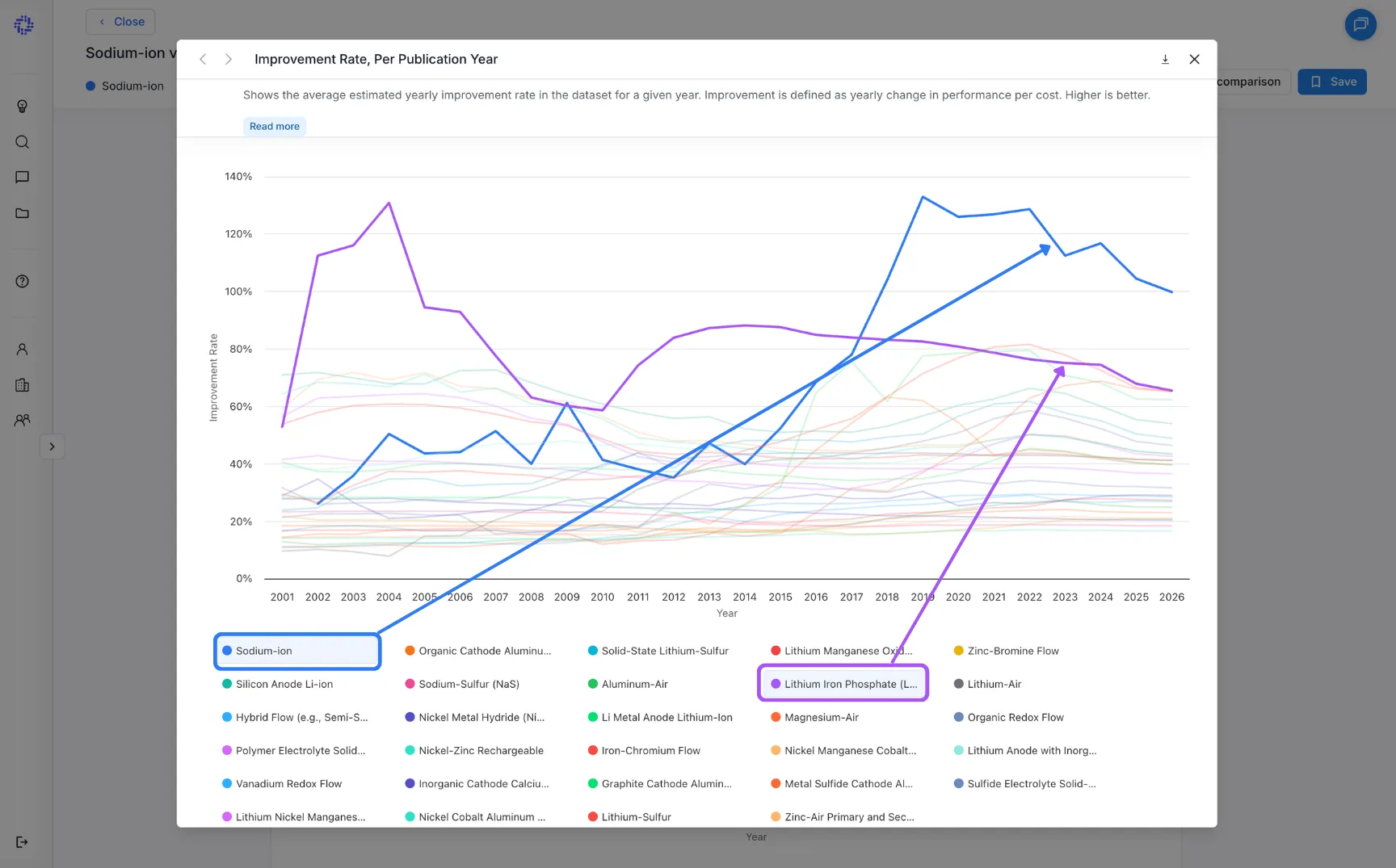
TIRs are best understood like compounding interest rates. A higher TIR doesn’t necessarily mean the technology is best today. It means it’s expected to make bigger year-over-year gains in performance and/or cost than its competitors.
So if Sodium-ion is improving faster than LFP, it’s likely to become a more attractive alternative over time, even if it’s not the top option right now.
💡Think of TIRs as an early warning system: they can point to future shifts before the market makes them obvious.
Once you've identified the fastest-improving technology, it's time to deep dive into the patents to better understand the domain. We recommend starting with the fastest-improving technology, but you can pick any technology to begin with.
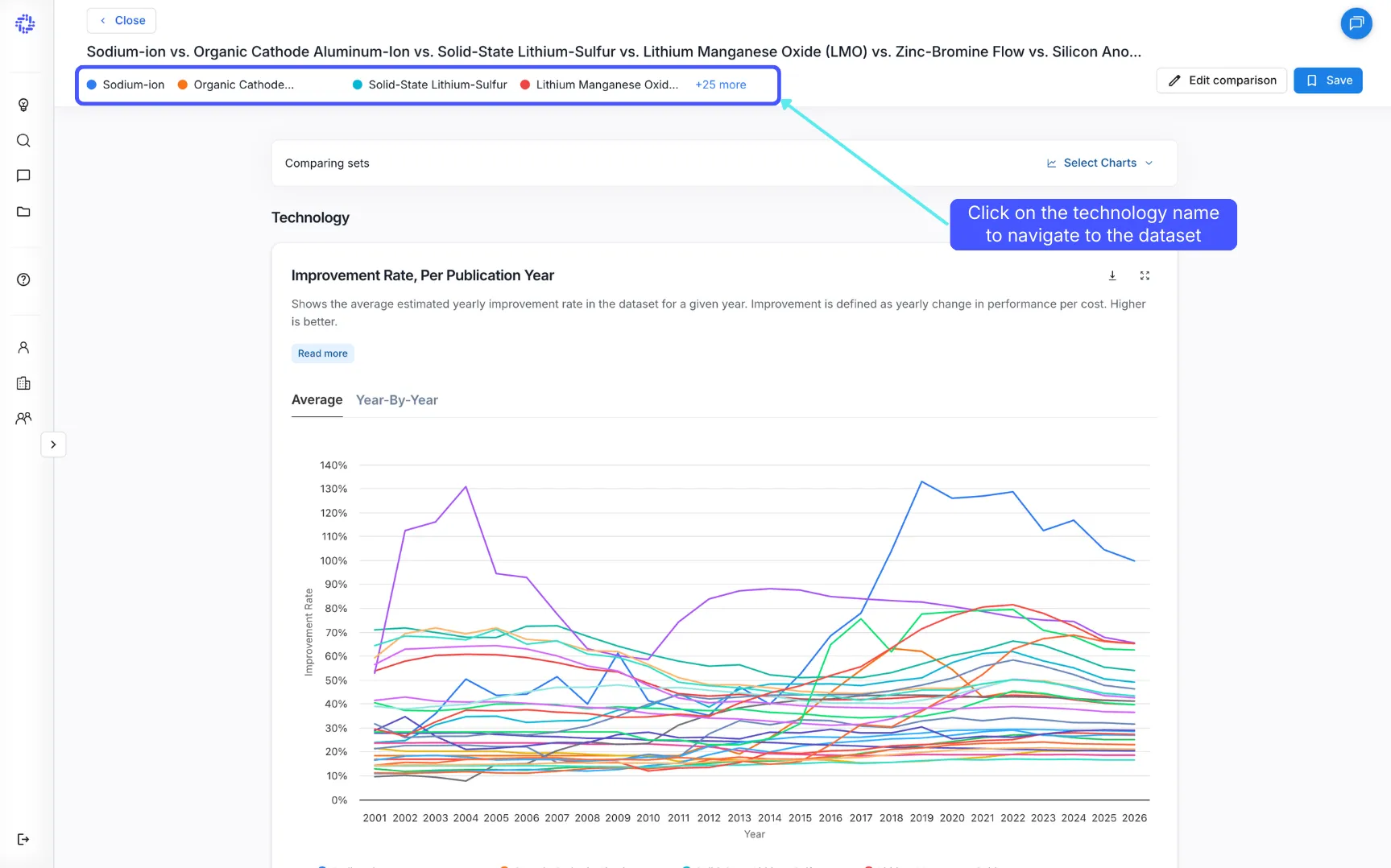
When you click on a dataset, you'll be taken to the Families view, where you can see all the patent families that make up the dataset.
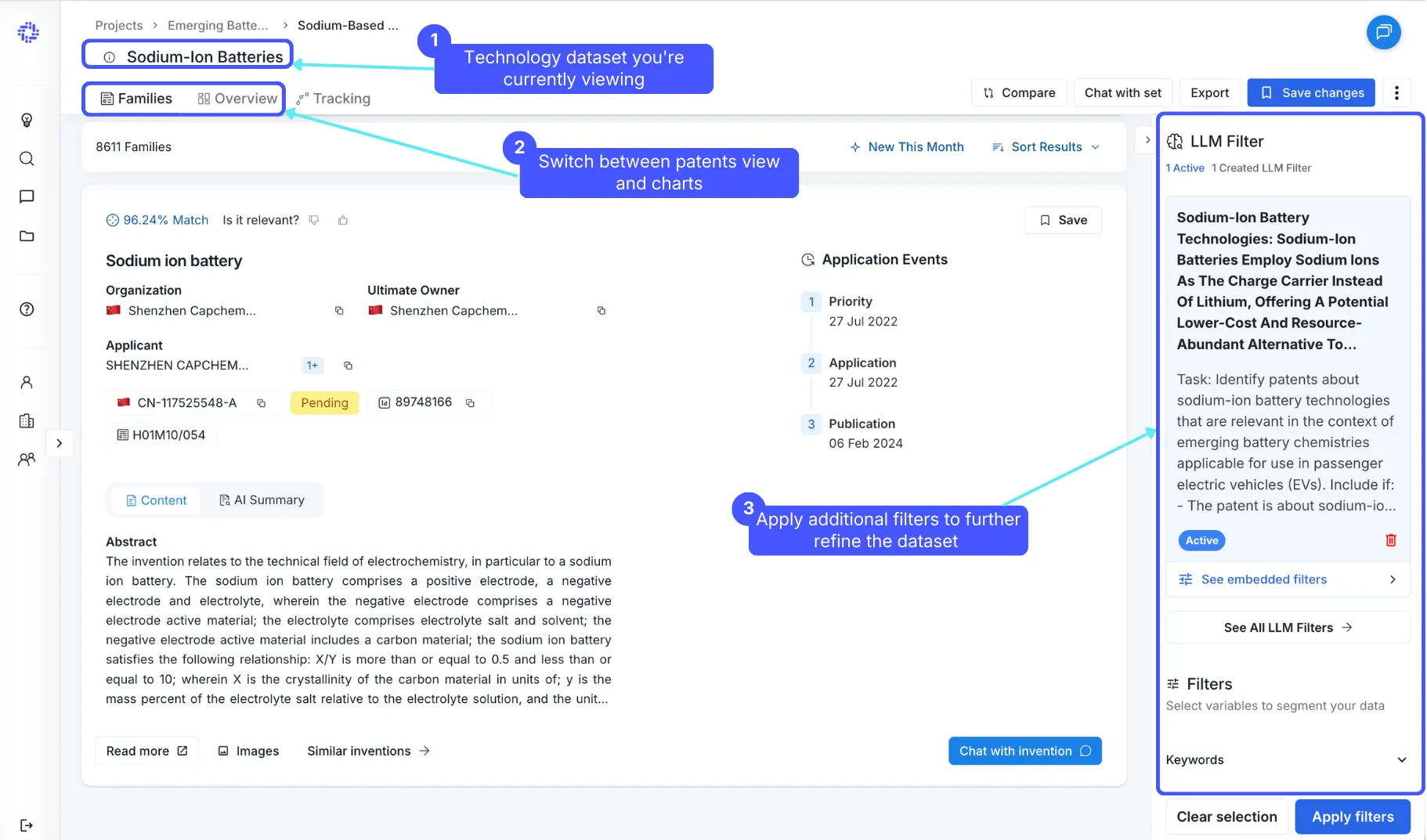
To refine your dataset further use the filters on the right-hand side to slice and dice your data. Scroll down in the filter panel to explore additional options, such as company portfolios, time periods, and regions to create a more focused subset. Always click "Apply filters" after making changes to update the list and charts.
✅ Note that the LLM filter you created earlier has already been applied. ‼️ Filters affect TIR. Applying additional filters to your dataset may affect the TIR chart and its values. For accurate TIR analysis, avoid applying extra filters beyond the initial LLM filter. ‼️ Dataset quality matters. A reliable TIR calculation requires a patent dataset of at least 50 families. The more patents, the more reliable the result.
Starting your deep dive
Chat with Set — best for high-level questions across your dataset. Simply ask a question and the AI will read up to 1,000 patent families at once and come back with an answer. It has access to the titles, abstracts, and claims of each invention.
Chat with Invention — best for detailed Q&A on a single patent. It reads the full content of the selected patent - title, abstract, claims, and full description - all at once.
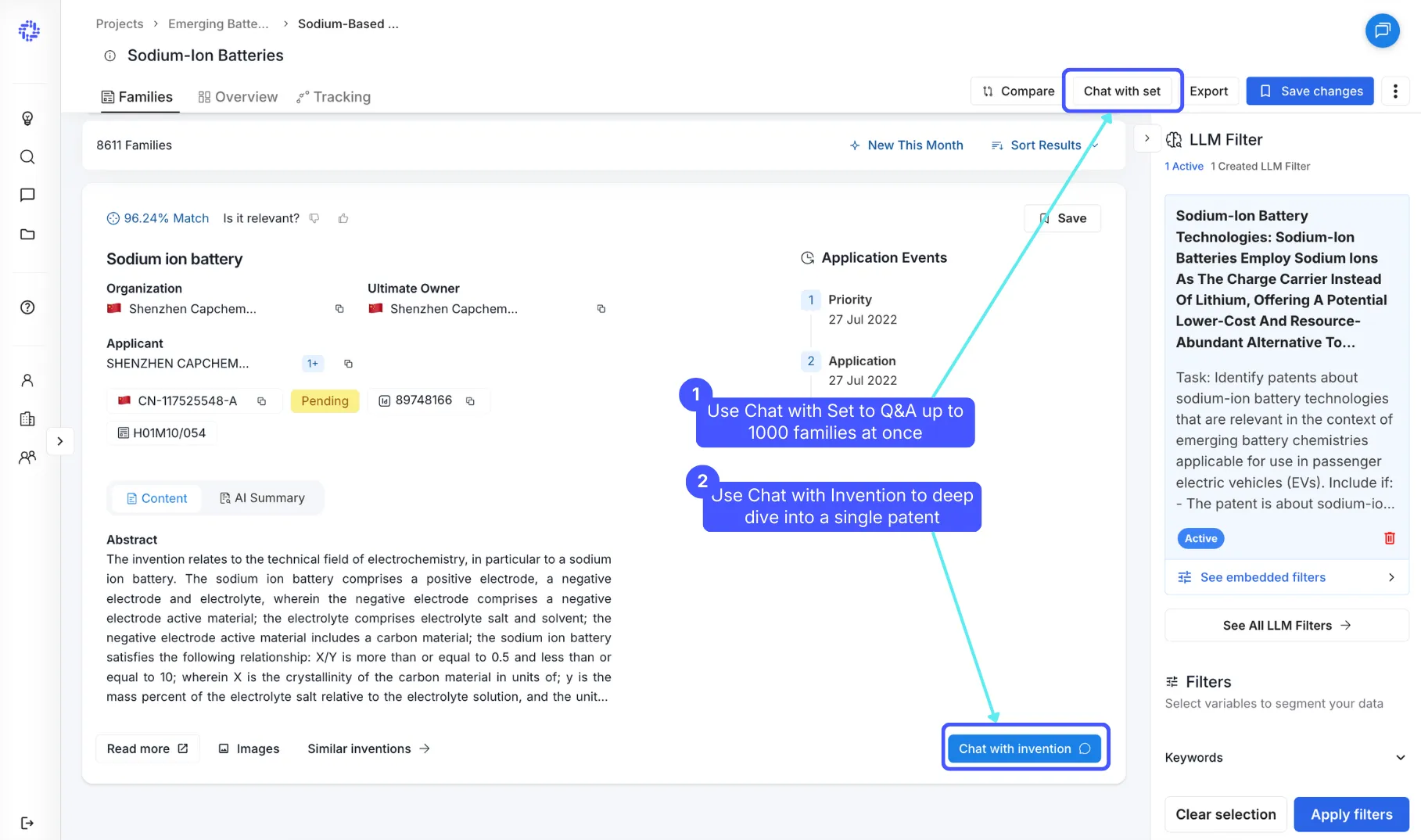
Use Chat with Set to ask high-level questions across a group of patents—trends, themes, and portfolio comparisons. What it reads: titles, abstracts, and claims (for all families in the set) Best for:
- spotting trends and how they change over time
- comparing portfolios across companies
- summarizing what’s in your filtered dataset
How it works: Type your question in the input field , and your answer will be generated below.
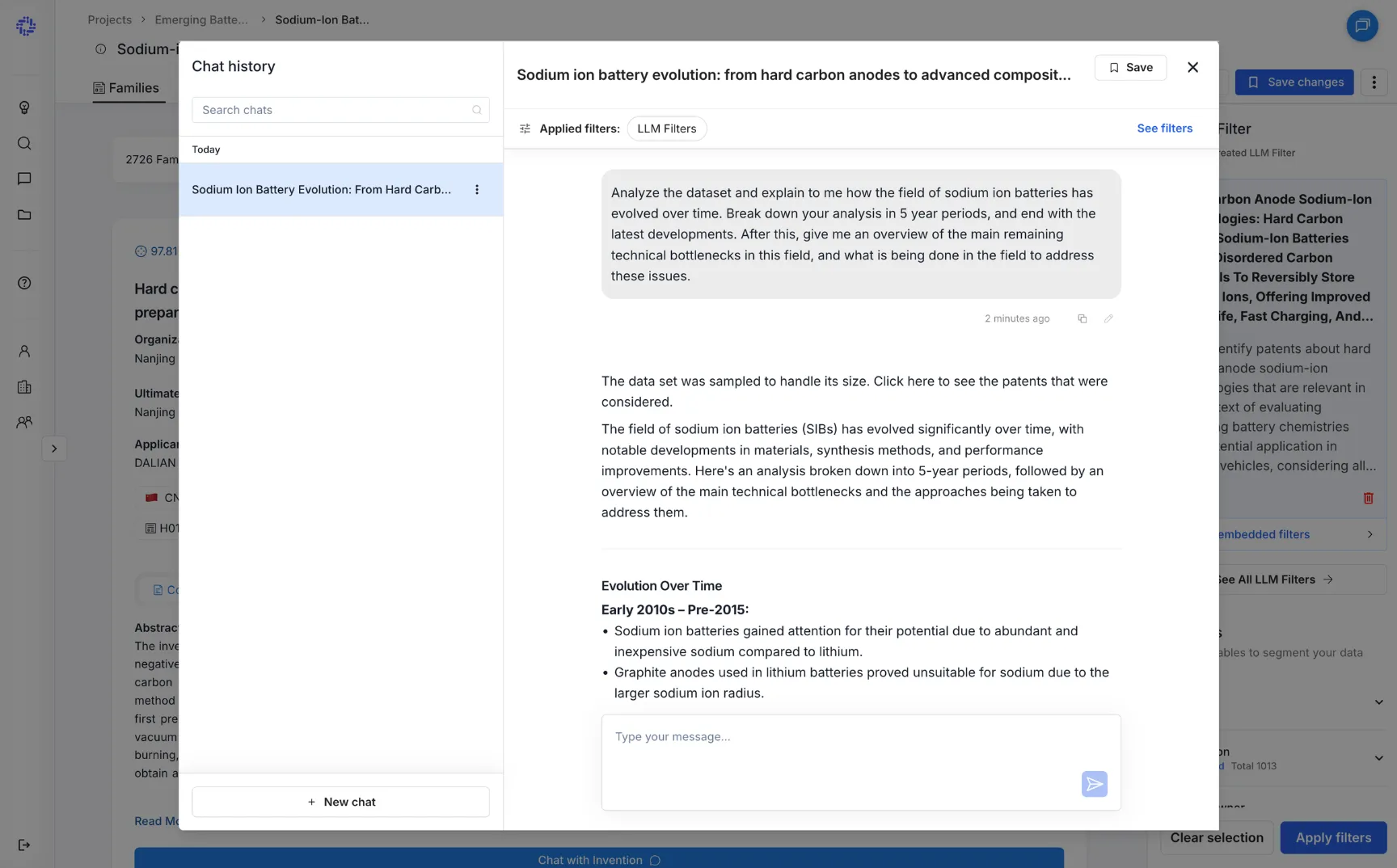
If your dataset contains more than 1,000 families, Chat with Set will use a subset of 1,000 families to generate an answer.
💡 If you want full control over which families are included, filter your dataset down to ≤ 1,000 before asking your question. You can also apply common filters directly in Chat with Set (e.g., publication year, status, patent office, ultimate owner).
Use Chat with Invention when you want detailed Q&A on a specific patent.
What it reads: title, abstract, claims, and the full description (including images, if available) Best for:
- understanding a single invention thoroughly
- extracting implementation details, embodiments, or claim scope
- answering precise technical questions
Chat with Invention includes references and cites sources at the bottom of its answer.
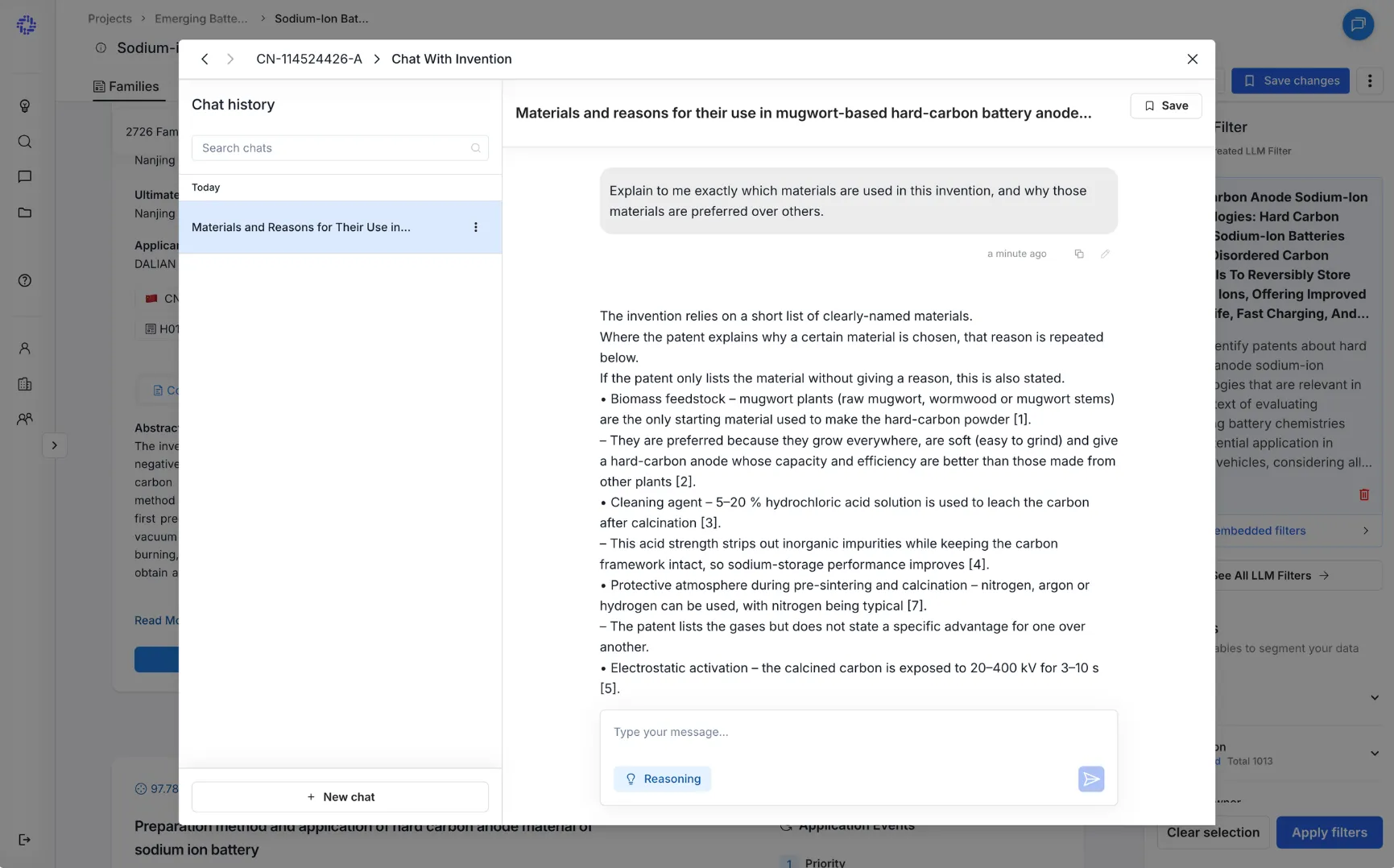
Chat with Invention supports two modes:
- Non-reasoning mode: best for quick, straightforward questions (fast responses)
- Reasoning mode: best for complex questions (takes more time, higher quality reasoning)